
To configure TrustBuilder as an EAM with SCIM user provisioning in Microsoft Entra ID, the Microsoft Entra ID object ID (objectId) must be synchronized to a TrustBuilder oid attribute. The oid attribute is then used to identify the user during EAM authentication.
1. Configure SCIM provisioning
Configure SCIM provisioning between Microsoft Entra ID and TrustBuilder to synchronize users. Follow the steps in SCIM provisioning with Entra ID.
2. Create the oid attribute in TrustBuilder
In TrustBuilder Admin Portal,
-
Go to Directory > User attributes.
-
Click on + Set up attribute definition.
-
Create a custom attribute with the following properties:
-
Category: SCIM
-
Attribute name:
oid -
Data type: String
-
Properties: Unique, case-sensitive
-
Visibility: Hidden on Self-Service portal
-
-
Copy the attribute URN. You will need it to map the attribute in Entra ID.
-
Add the attribute to the user profile definition:
-
Go to Directory > User Profile Definition.
-
Select Oid.
-
Click Save.
-
3. Map the Microsoft Entra ID object ID
The Object ID (OID) is a unique identifier for each user in Microsoft Entra ID.
TrustBuilder uses this OID to identify users and populate the sub claim in the ID Token. Without it, authentication would fail because Entra requires a valid sub.
In Microsoft Entra admin center:
-
Go to Enterprise Applications > [Your app] > Provisioning > Attribute Mapping (Preview).
-
Click on Provision Microsoft Entra ID Users to configure the attribute mapping.
-
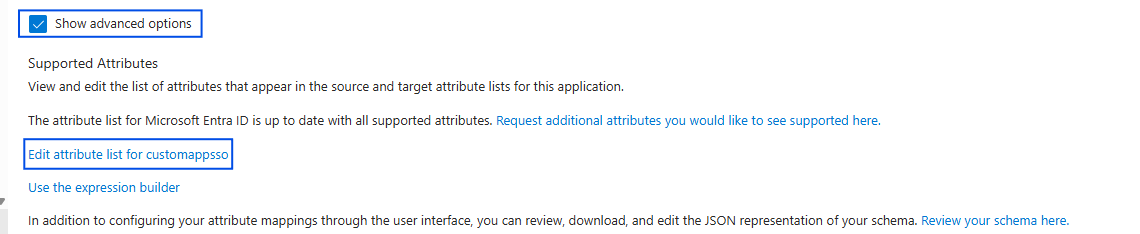
Enable Show advanced options and click Edit attribute list for customappsso
-
Add the following attribute:
-
Paste the URN of the custom attribute previously created in TrustBuilder.
urn:ietf:params:scim:schemas:extension:trustbuilder:2.0:User:oid -
Type: String
-
-
Click Save.
-
Click on Add New Mapping.
-
Fill in at least the mandatory parameters:
-
Source attribute → select
objectId -
Target attribute → select
urn:ietf:params:scim:schemas:extension:trustbuilder:2.0:User:oid
-
-
Click Ok.
4. Configure TrustBuilder as an External Authentication method
Once user provisioning and the oid mapping are configured, configure TrustBuilder as an External Authentication Method in Microsoft Entra ID.
Follow the steps in Entra ID : EAM (External Authentication Method).