
Microsoft External MFA (formerly External Authentication Methods) in Microsoft Entra ID allows organizations to integrate their preferred multifactor authentication (MFA) solutions directly with Entra ID.
Prerequisites
Integrating TrustBuilder as an External MFA in EntraID requires the following:
Licensing
At least a Microsoft Entra ID P1 license.
User provisioning
Users must be synchronized from Microsoft Entra ID to TrustBuilder.
The Microsoft Entra ID objectId must be mapped to the TrustBuilder oid attribute. The mapping procedure depends on the provisioning method used.
For SCIM provisioning, see Entra ID: SCIM + External MFA.
Specific case of local applications on Windows
Warning: Locally installed Windows desktop applications rely on the Microsoft Edge WebView2 Runtime to display the authentication (sign-in) window of TrustBuilder Safe-T.
On Windows 11, Since December 2025, Entra ID app sign-in through Web Account Manager (WAM) has the option to be powered by WebView2, the Chromium-based web control, starting with KB5072033 (OS Builds 26200.7462 and 26100.7462) or later.
If not enabled, the desktop application may fail to start and show a blank sign-in window.
Check the status of WebView2 Runtime:
Verify it is present (check Settings > Apps > Installed apps for “Microsoft Edge WebView2 Runtime”). If it is missing, deploy it using the Evergreen Standalone Installer from Microsoft.
Enable WebView2 in the Entra ID plugin:
Configure a registry entry with:
Reg key location: Computer\HKEY_LOCAL_MACHINE\SOFTWARE\Policies\Microsoft\Windows\AAD
Reg key value: WebView2Integration as a DWORD and assign it to “1” for WebView2 integration to be ON.
Note: If the AAD key does not exist, create it by right-clicking on Windows, selecting New > Key, and naming it AAD.
More information: Modernizing Microsoft Entra ID auth flows with WebView2 in Windows 11
Integration Steps
Step 1 - Configure an application in TrustBuilder
Create and configure an application in TrustBuilder:
-
Log in to TrustBuilder administrator portal.
-
Go to Integrations > Applications > + Set up app integration.
-
Select OIDC.
-
In General section, enter a name and optionally a description and a logo.
-
Choose the application type Public Application.
-
Click on Next.
-
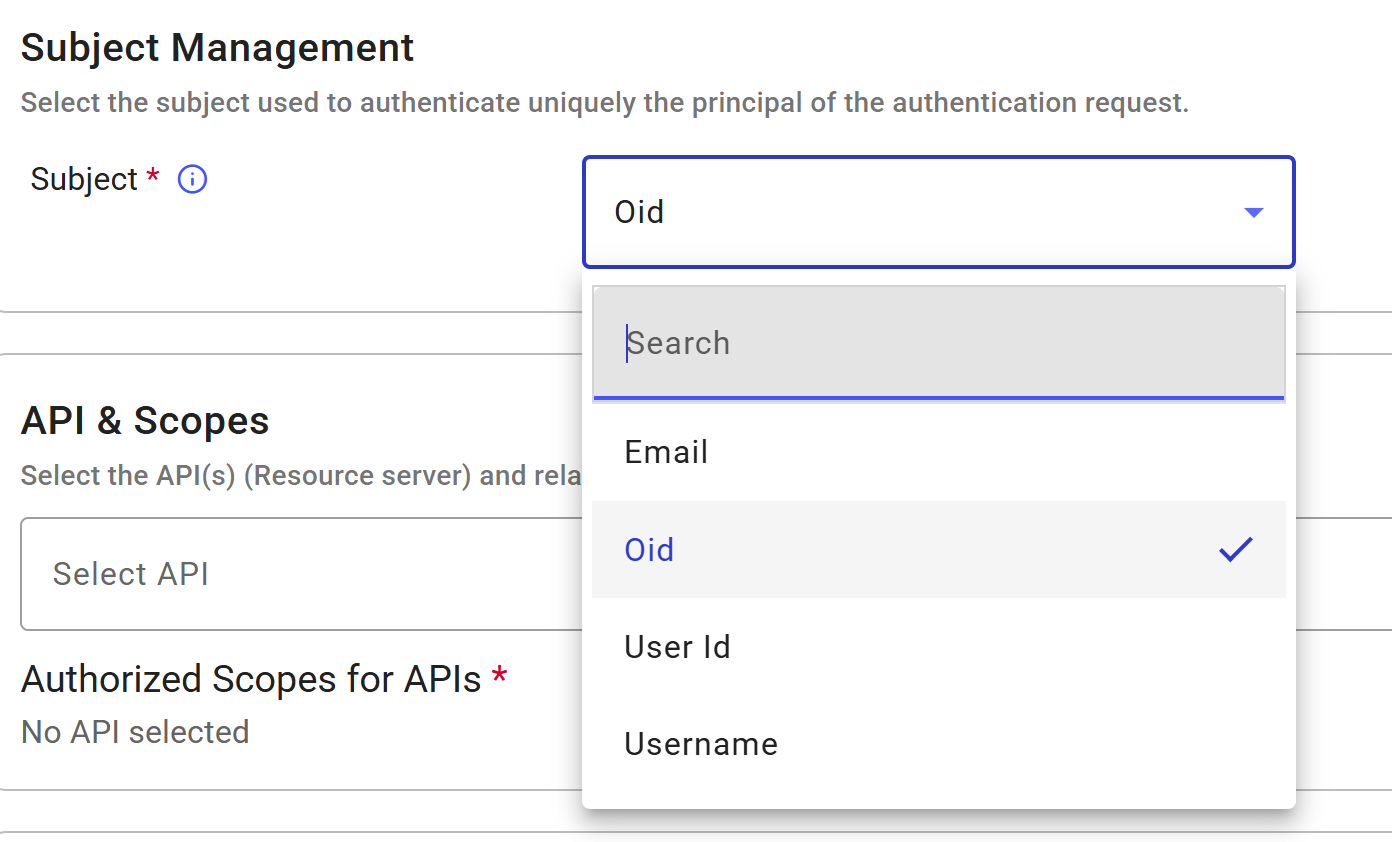
For the subject, select oid (see Prerequisites). TrustBuilder will use the oid to check if the user exists.
-
Select the API scope. You can select Internal API. No additional scopes are needed for this integration: the default
openidscope is sufficient. -
Enter the following redirect URI:
https://login.microsoftonline.com/common/federation/externalauthprovider -
Select:
-
the authorization policy → you can choose the default built-in policy. This policy requires users to be authenticated with an authentication method meeting AAL3 level.
-
the JWT Signature Algorithm → Microsoft wants a certificate SHA256 or EC256.
-
-
Click on Submit.
-
Click on Done.
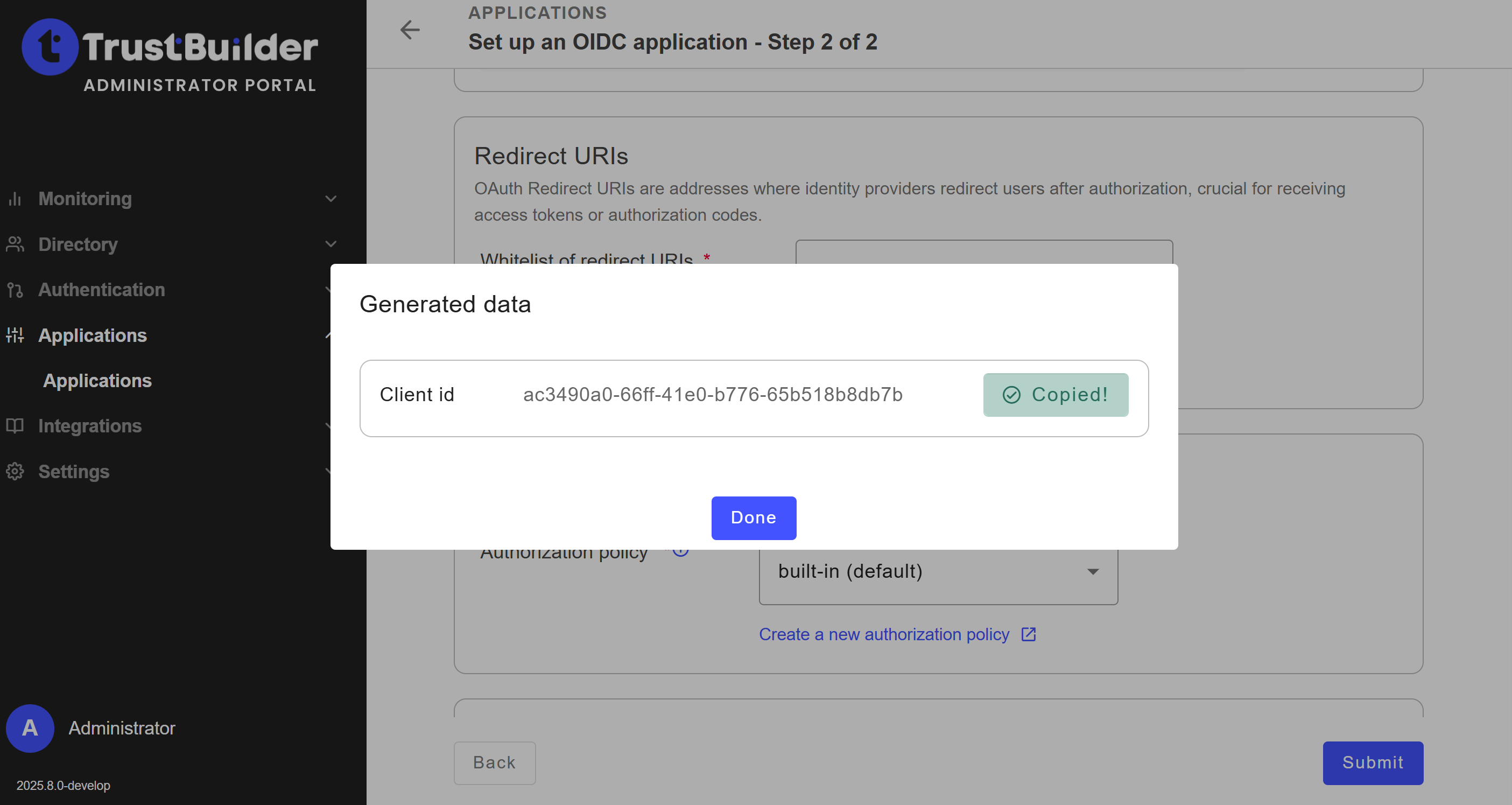
The main configuration is complete.
-
In the General tab, disable PKCE.

-
In the Security settings tab, in Allowed Origins parameter, enter the URL where the authentication requests originate from.
- For web applications a usual value should be:https://login.microsoftonline.com.
- For desktop applications, you can keep the default value*.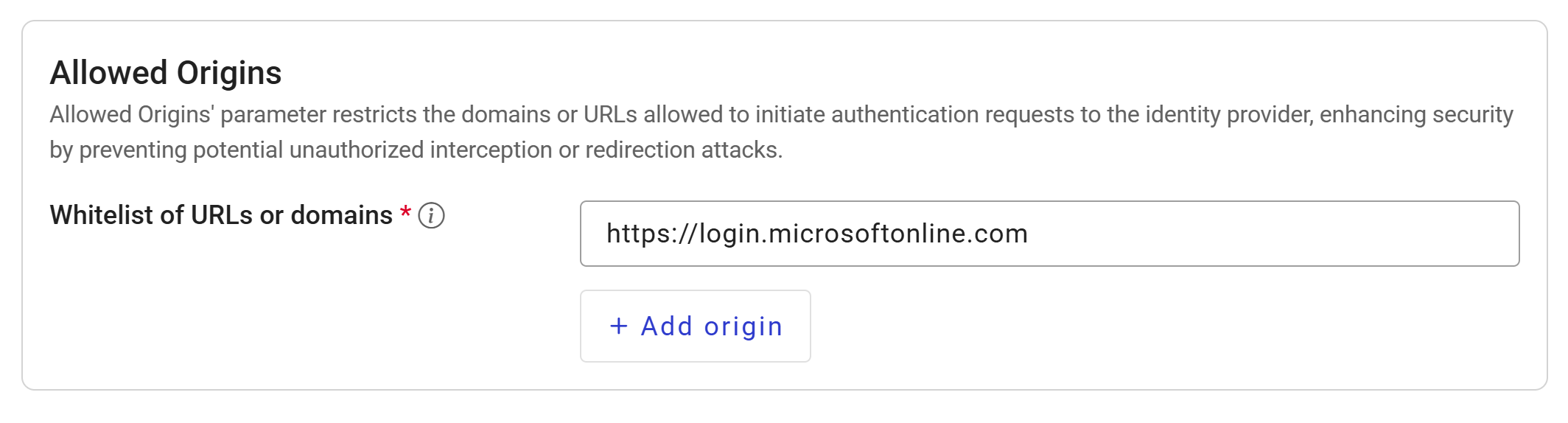
-
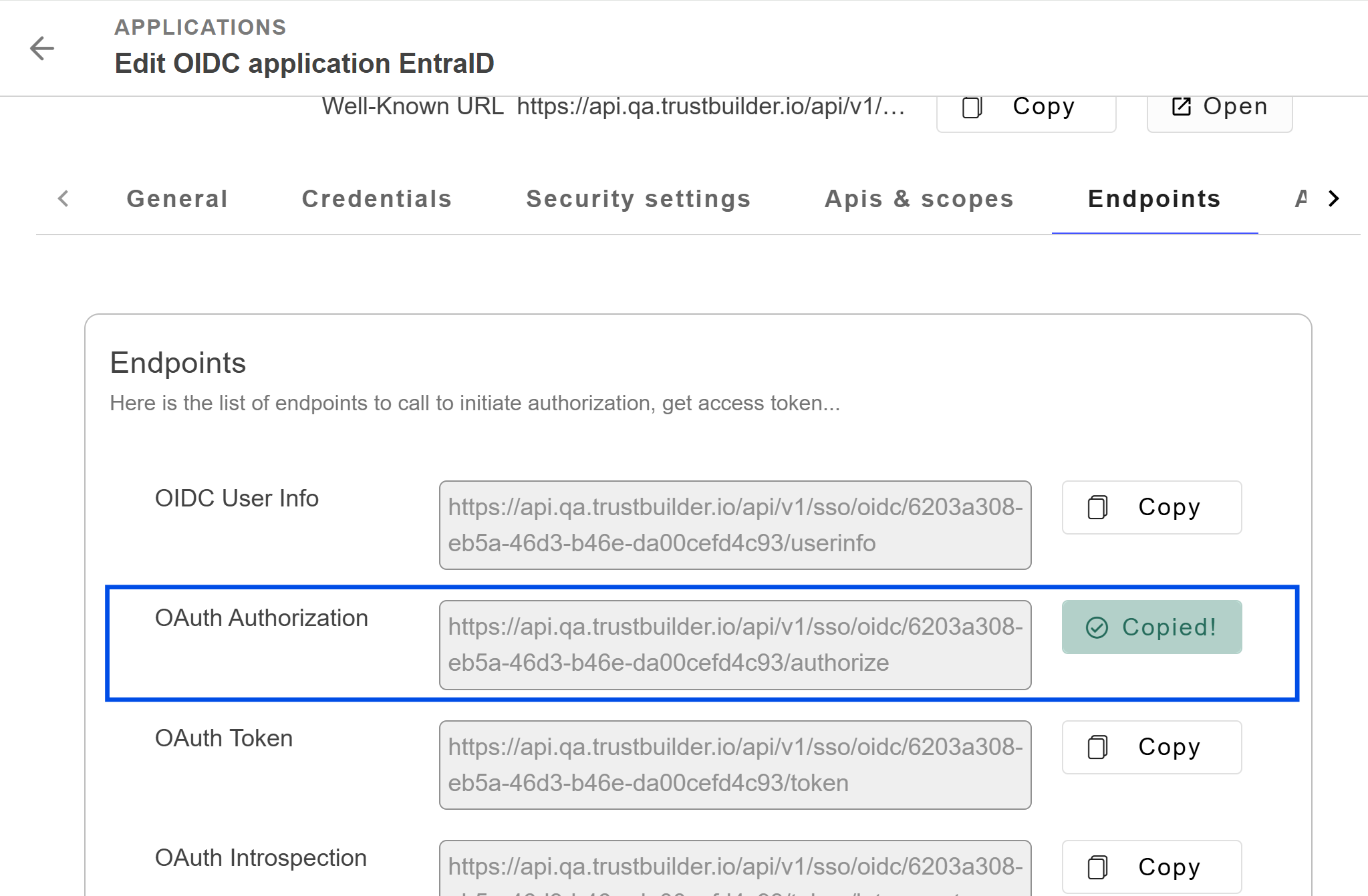
In the Endpoints tab, you will find the OAuth Authorization URL. Copy it as you will need this information in Entra ID to connect the application to TrustBuilder.
Step 2 - Register an application in Entra ID
Register an application in Entra ID and connect it to TrustBuilder:
-
Log in to Microsoft Entra admin center.
-
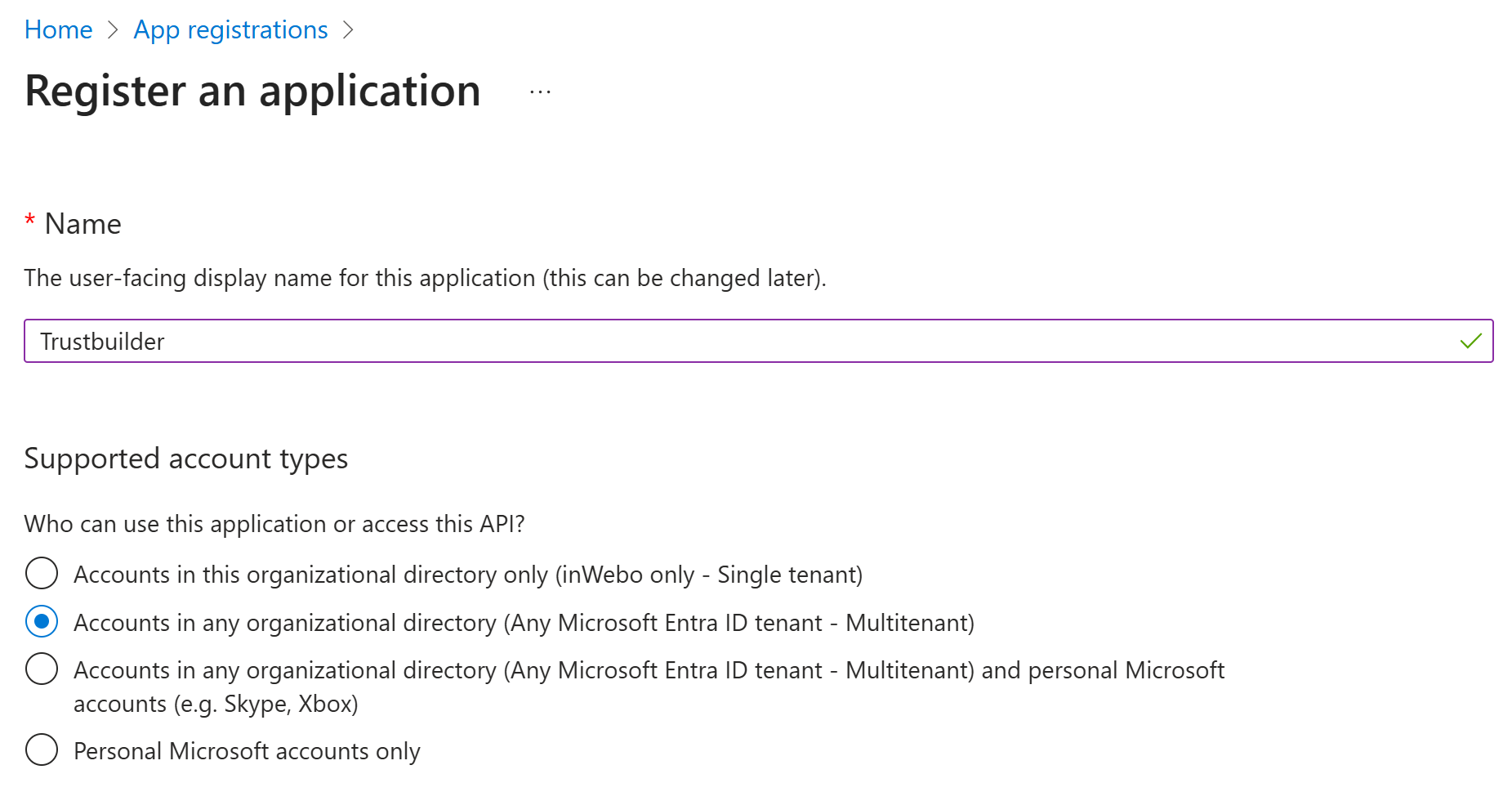
Go to App registration > + New registration.

-
Define a name and set the supported account types to "Accounts in any organizational directory (Any Entra ID directory - Multitenant)".
-
In the Redirect URI section:
-
Select Web platform,
-
Paste the Authorization endpoint previously copied from Trustbuilder.


-
-
Click on Register.
-
Once the app is created in Entra ID, you will find information in the Essentials section.
Keep the Application (client) ID handy, as you'll need it later to configure your External MFA.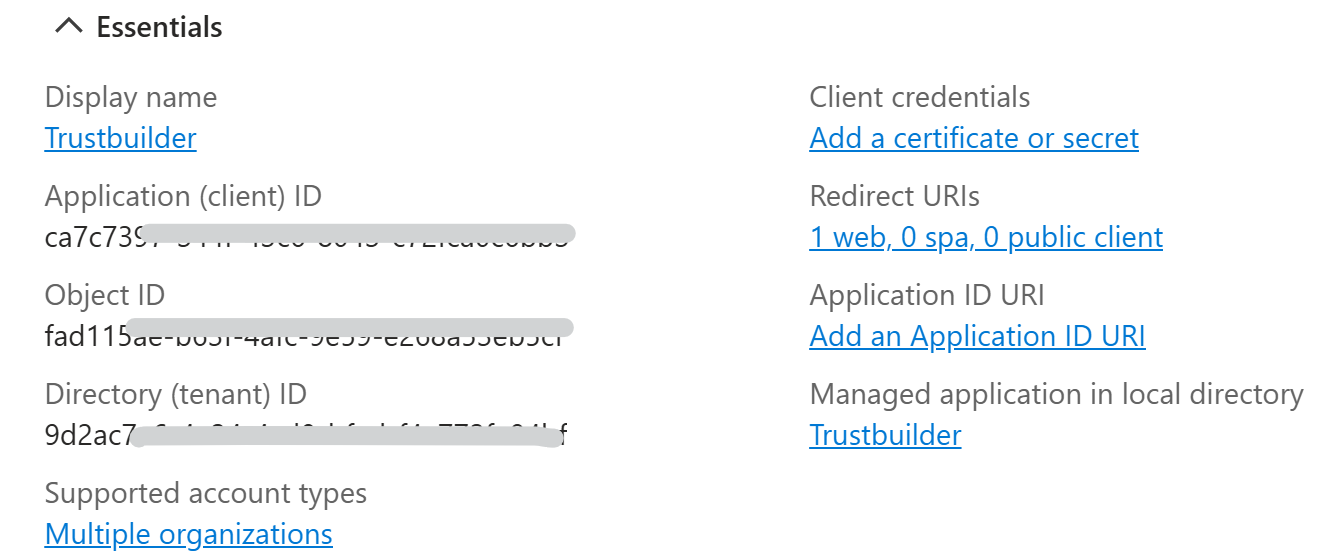
Step 3 - Add TrustBuilder as an External MFA in Entra ID
The number of external MFA is currently limited to 6 in Entra ID.
In Microsoft Entra admin center:
-
Go to Authentication methods > Policies.
-
Click on + Add external MFA.
-
Set parameters for TrustBuilder authentication method:
-
Name: Enter a name for TrustBuilder authentication method.
⚠️ Users will see this name when they select their authentication method during Entra ID login. Choose a name that is clear and recognizable to them. It cannot be changed.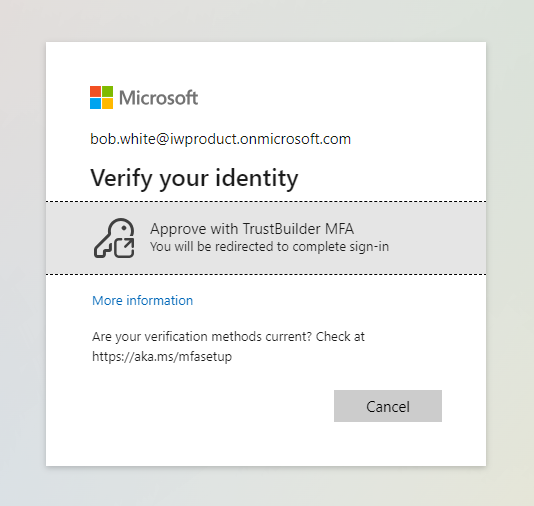
-
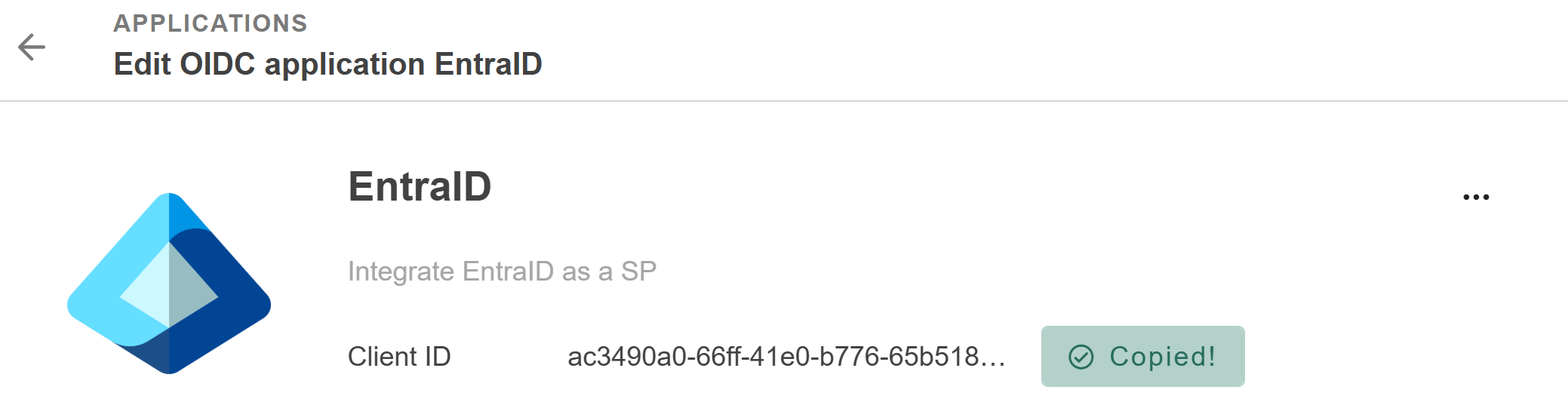
Client ID: Paste the Client ID of your TrustBuilder OIDC application.
-
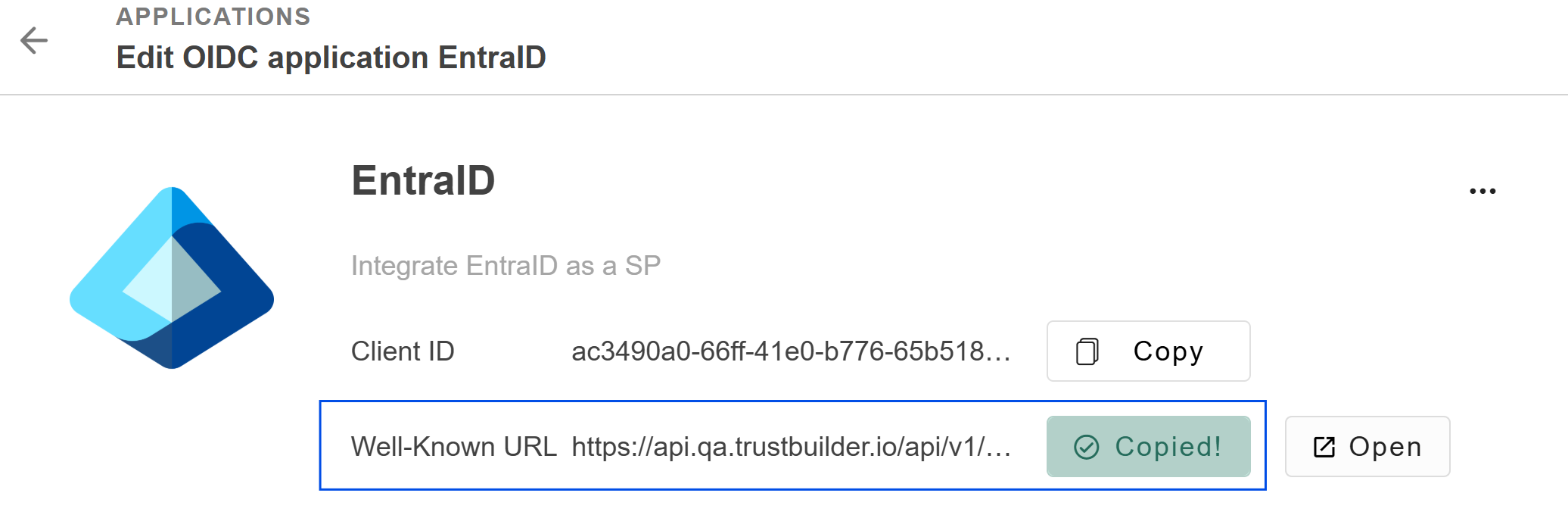
Discovery Endpoint: Paste the Well-Known URL of your TrustBuilder OIDC application.
-
App ID: Paste the Application ID value of your app in Entra ID.
(To retrieve the Application ID go to App registrations > All applications > Application (client) ID column) -
Request admin consent: Click on “Request permission” to request for admin consent to be granted to the application so that they can read the required info from the user to authenticate correctly.
You are prompted to sign in with an account with admin permissions and grant the provider’s application with the required permissions. After you grant admin consent and the change replicates, the page refreshes to show that admin consent was granted.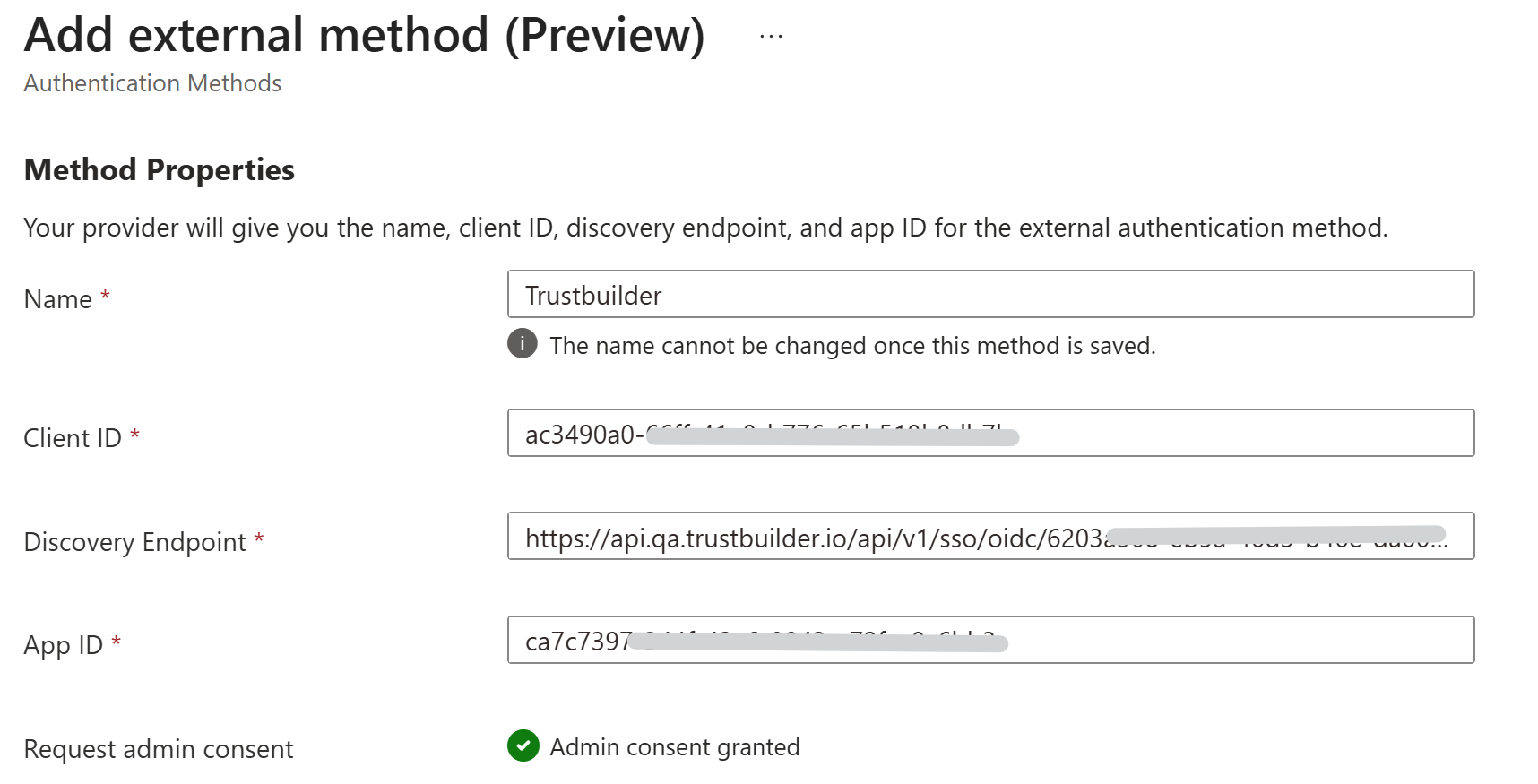
-
-
Check the included and excluded targets. All users are included by default.
-
Enable the TrustBuilder External MFA.
If you want to enable only the newly created authentication methods, make sure the 'built-in' methods are disabled (in Authentication Methods > Policies).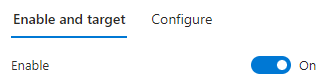
-
Save the configuration.
Step 4 - Configure a conditional access policy in Entra ID
In Microsoft Entra admin center:
-
Go to Conditional Access > Policies.
-
Click on + New Policy (or edit an existing one).
-
Enter a name
-
Specify the users that will be covered by this policy.
-
Specify the target applications.
-
Specify the access that should be granted.
In our case, check Require multifactor authentication. Thus, our External MFA will be used as a MFA step.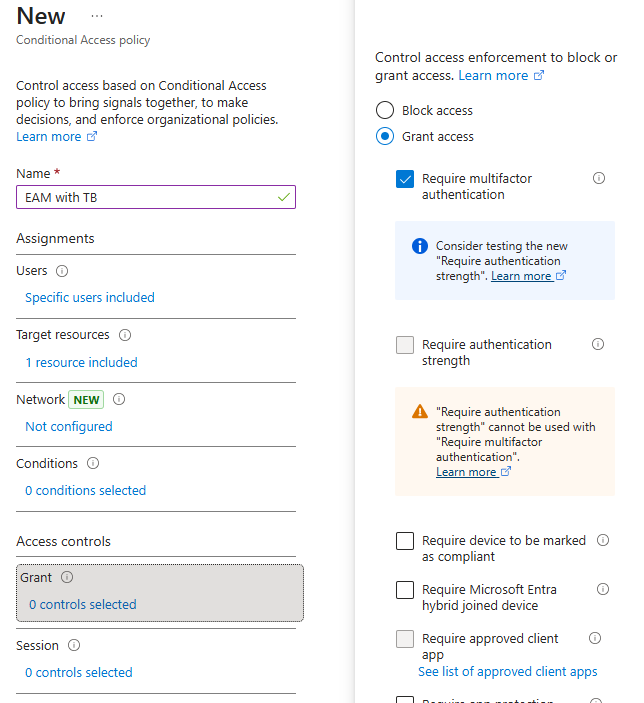
-
-
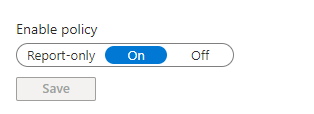
Enable the policy.
-
Click on Create.
When selecting "✅ Require multifactor authentication" you don't specify which External MFA will be used. If multiple External MFA are defined for the same app and available to all users, the process might not use the intended External MFA.
Make sure that both, the External MFA and Conditional Access policy, include and exclude the relevant users to guarantee the correct External MFA is applied.
Troubleshooting
AADSTS5001258: Failed to validate external id_token: 'acr' claim has unexpected value.
There two possible cases:
-
This error happens when the connector has been modified or when the external authentication method has been modified. Solution: wait some time and retry. The error should disappear.
-
Check the Connector type. It it is OIDC, create a OIDC Azure AD connector and use it instead.
Related documentations