
White label integration
White label integration allows you to use TrustBuilder to secure your applications without showing the TrustBuilder brand. Users only see your company’s branding, your logos and your colors. TrustBuilder runs in the background as the authentication engine.
A white-label integration can include:
Mobile authentication
Integrate TrustBuilder authentication features into your mobile application using Trustbuilder Android or iOS SDK.Web authentication page AVAILABLE SOON
Integrate TrustBuilder authentication features into a web application using Trustbuilder Web SDK.Custom login portal
Provide your users with a portal that handles the web authentication experience.User management
Self-care → users manage their authentication methods
Admin management → administrators manage users authentication methods
The authentication logic and API interactions are handled by TrustBuilder, while your applications control the look and feel.
Main phases
API credentials: Get API credentials (Client ID / Client Secret) to communicate with TrustBuilder.
Application and Policies configuration in Trustbuilder admin portal:
Declare your custom applications and create a custom internal authentication method
Define registration policies and configure authorization rules.
Connect your business application
User provisioning:
SCIM
API
JIT
Technical Integration:
Embed TrustBuilder SDKs into mobile and/or web apps
Connect a custom login portal
Operations management: Manage authentication flows, transaction confirmations, user self-care, and administrative operations.
1. API credentials
Create OAuth M2M application
To generate access tokens and access APIs, login to Trustbuilder admin portal and first create an OAuth application with the following settings:
Application type: Machine to machine
Subject: Not used (you can select any value)
API & Scopes: Internal API --> Click Open and then Select all
Authentication methods: Client secret Basic
Authorization policy: Not used (you can select any value)
Access token: RS256
Once the application is created, you will obtain: Client ID and the Client Secret.
⚠️ Make sure to securely save the Client Secret as it will not be displayed again after creation.
These credentials (Client ID and Client Secret) are then used to generate access tokens, which allow your application to call the TrustBuilder APIs.
Generate an access token
The OAuth application you have previously created has a unique token endpoint. This must be used to generate an access token:
In TrustBuilder Admin portal, click on the OAuth application created.
Go to the Endpoints tab.
Copy the OAuth Token endpoint.
To request an access token, make a POST call to the token endpoint.
CODEgrant_type=client_credentials client_id=YOUR_CLIENT_ID client_secret=YOUR_CLIENT_SECRETThe response includes:
access_token→ to be used in API requests to Trustbuilderexpires_in→ token lifetime in secondstoken_type→Bearer
The successful response includes
access_token,token_typeandexpires_invalues.The access token value should be included in API requests:
Authorization: Bearer ACCESS_TOKEN
By default, the access token is valid for 900 seconds. You can adjust the lifetime in the TrustBuilder Admin Portal, under the Security Settings tab of the OAuth application.
2. Application and Policies configuration
In Trustbuilder admin portal:
Create a custom app mobile
Once created, an appID will be generated. It will be needed it the SDK app integration.
Create a custom portal app
Create a custom authentication method
Configure registration policy
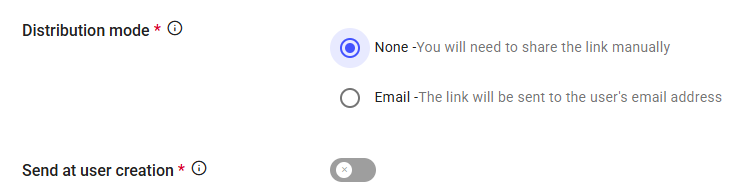
For white label integration, set the distribution mode to None and disable Send at creation to prevent users from receiving Trustbuilder registration emails.
Configure authorization policy
Connect a Service Provider (business app with and without transaction confirmation - CIBA)
3. User provisioning
SCIM: use the SCIM protocol to synchronize your identity directory with the platform in real time.
See SCIM provisioningAPI: call the REST user management endpoints
Just-In-Time provisioning
See OIDC IdP integration
4. Technical integration
The technical integration phase consists in embedding TrustBuilder authentication capabilities into your applications using SDKs and APIs.
Trustbuilder SDKs
Integrate TrustBuilder authentication directly into your application:
Custom login portal
The custom portal acts as the bridge between the user interface and the authentication backend (Trustbuilder). It handles the web authentication experience. It must be developed and hosted on your side.
Authentication request (Out-of-Band)
Out-of-Band (OOB) authentication is when a user receives an authentication request on a separate device (mobile app) to approve a login or transaction. In this case, the custom login portal calls Trustbuilder APIs to track authentication requests status and then display the right screens to users.
API endpoints:
Send authentication notification to user devices
/api/v1/mfa/login/tenants/{tntAlias}/auth-sessions/{authSessionId}/outofband-requestCheck the status on ongoing authentication sessions
/api/v1/mfa/login/tenants/{tntAlias}/auth-sessions/{authSessionId}/statusRetrieve redirection information after user authentication
/api/v1/mfa/login/tenants/{tntAlias}/auth-sessions/{authSessionId}/get-auth-code

The interactions between the custom login portal and TrustBuilder are described in the Operations section below.
Authentication Method selection
The custom login portal can displays the available authentication methods to users to allow them to choose and send the chosen method to Trustbuilder.
API endpoints:
Retrieve authentication methods for a user
/api/v1/sso/registration/enroll/users/{user_id}/method-selectionSend to Trustbuilder the selected authentication method for a user
/api/v1/sso/registration/enroll/users/{user_id}/select-method
The interactions between the custom login portal and TrustBuilder are described in the Operations section below.
Trustbuilder Authenticator Web SDK AVAILABLE SOON
The custom login portal can embed TrustBuilder Authenticator Web SDK to implement browser-based authentication directly in your portal.
5. Opérations
User first registration
User first registration is the process that allows a user to register an authentication method for the first time and define their secret code.
Actors:
User: the user who wants to register an authentication method to authenticate securely.
Client Backend: the server-side component of your application. It communicates with TrustBuilder APIs and sends data to the frontend.
Client Frontend: the web interface used by the user. It displays available authentication methods, collects the user’s choices, guides the user through enrollment.
SDK App: a mobile or web application integrating the TrustBuilder SDK. It performs the technical enrollment steps, exchanges cryptographic material with TrustBuilder.
TrustBuilder server: It stores user identities, applies registration policy, manages authentication methods and generates activation packages and credentials.
We assume that:
a Trustbuilder tenant has been configured with enrollment policy defined and relevant authentication methods configured and enabled;
The user has been provisioned in Trustbuilder and is pending for a first registration;
A backend application is allowed to call Trustbuilder APIs.
One or more mobile/web applications are developed using Trustbuilder SDK.
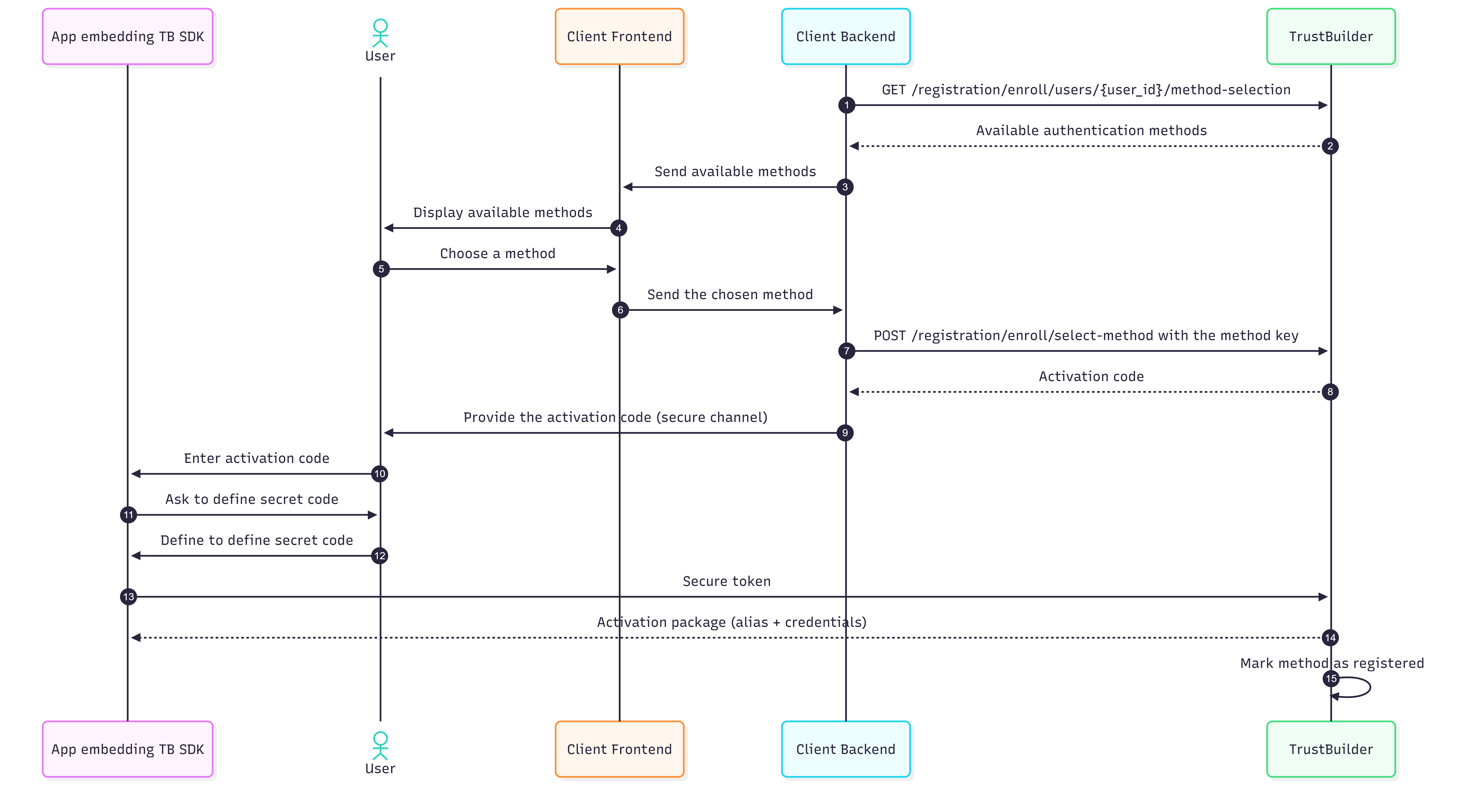
The client backend requests Trustbuilder the available authentication methods for a user.
/api/v1/sso/registration/enroll/users/{user_id}/method-selectionTrustbuilder search for the authorization policy and authentication methods available for this user.
It sends back the available authentication methods for the user.The client backend sends the available authentication methods to frontend.
The client frontend displays the available authentication method to the user.
The user chooses an authentication method.
The client frontend sends the chosent authentication method to backend.
The client backend sends the authentication method key to Trustbuilder.
/api/v1/sso/registration/enroll/select-methodTrustbuilder sends back an activation code to client backend.
The client backends provides to the user the activation code using the secure communication channel of their choice.
The user retrieves the activation code and enter it in the app integrating Trustbuilder SDK.
The user is asked to define a secret code - based on the Trustbuilder Authenticator settings.
The user defines their secret code.
The app embedding Trustbuilder SDK requires Trustbuilder to recognize it as a secure token for the user to authenticate.
Trustbuilder sends back an activation package, containing a unique alias and credentials that will be used for the future authentications.
Trustbuilder successfully ends the registration process. The user can use this authentication method to authenticate.
Authentication with SDK mobile app (OOB)
COMING SOON