
OIDC IdP integration
This page explains how to integrate an OIDC-based Identity Provider (IdP) with TrustBuilder. Your external application will act as the IdP and TrustBuilder will act as the Service Provider (SP). The steps below will guide you through integrating the IdP to TrustBuilder so that users can authenticate through it.
To integrate an OIDC-based IdP:
Login to the Admin Portal.
Go to Integrations > Identity Providers.
Click on + Set up identity provider.
Select OIDC.
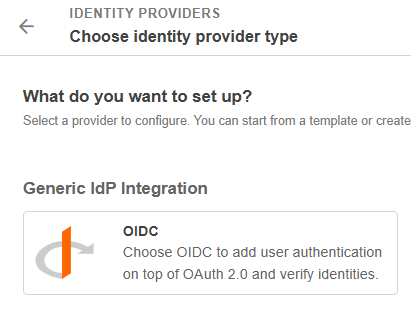
Enter a name and an optional description. You can also import a logo.
Select the subject which is the user attribute that uniquely identifies the user.
email: the user's email address will be used to authenticate the principal.user_id: the user’s unique identifier in Trustbuilder will be used to authenticate the principal.username: the user's username will be used to authenticate the principal.{custom_attribute}: you can select a custom user attribute, as long as it is unique and it is added in the User Profile Definition. See User Attributes
Optional - Enable Just-In-Time Provisioning. This will automatically create user accounts upon first successful authentication via this Identity Provider.
Thesubclaim returned by the Identity Provider will be mapped with the selected Subject attribute at previous step.

Attribute mapping for Just-In-Time Provisioning will be available in a future release.
Enter the issuer URI.
To find it, open your IdP’s discovery document athttps://<your-idp>/.well-known/openid-configurationand look for the value of the issuer field.
Example:https://<your-idp>/Provide the Client ID and the Client Secret. They are used to authenticate an application during exchanges with an authorization server.
Choose how TrustBuilder sends its client credentials to the IdP:
Client Secret POST → credentials are sent in the body of the POST request (default).
Client Secret Basic → credentials are sent in the HTTP Authorization header.
PKCE is enabled by default to prevent interception of authorization codes. You can disable it in special cases (confidential back-end applications or legacy IdPs that do not support PKCE) but this is not recommended.
Click Create.
The Identity Provider integration is now configured.

Redirect URI
In Settings tab, you will find the Redirect URI which should be added in the Identity Provider configuration as an allowed redirect URI.