
User Attributes
A user attribute represents either a basic piece of information or a structured set of data related to a user.
The Authorization Engine and Policies rely on these attributes to make context-aware decisions.
This documentation specifically covers user attributes defined in TrustBuilder. It does not cover attributes originating from external sources or received from identity providers (IdPs) during authentication.
A User attribute consists of different elements:
They are two types of attributes:
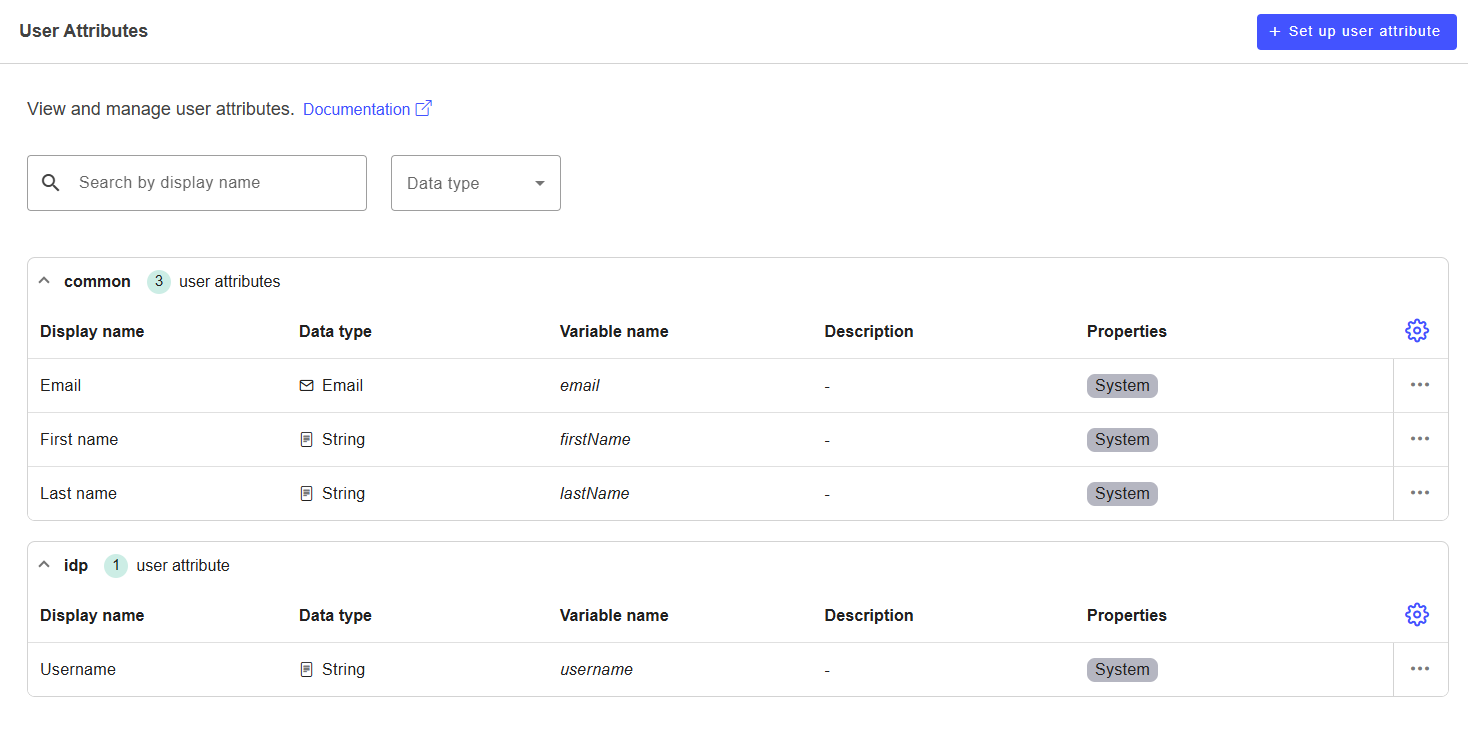
Built-in attributes → they are predefined by TrustBuilder and cannot be edited or deleted. They are always present in every users profile. They are
Email,First name,Last name,Username.Custom attributes → they are created and managed by administrators. They can be edited or deleted. They enrich user profiles with organization specific data.
Set up a custom user attribute
In TrustBuilder Admin portal:
Go to Directory > User Attributes.
Click on + Set up user attribute at the top-right corner.
Fill in the fields:
Parameter | Description |
|---|---|
Category | Select a category to group the attribute logically. Categories help organize attributes and make them easier to manage and search.
|
Attribute type | Choose the SCIM attribute type:
|
Attribute name | Enter a variable name. This is a technical identifier used to reference the attribute in code and integrations. Allowed characters: lowercase letters ( |
Display name | Enter the display name of the attribute. It is auto-generated from the variable name but can be modified. |
Description | (Optional) Enter a short explanation or note describing the purpose of the attribute. |
Data type | Select the format of the attribute value.
|
Properties | (Optional) Check one or more settings:
|
Visibility |
|
 A URN will be generated after creation and must be added to the provisioning source.
Click on Save.
Manage user attributes
Edit a user attribute
To edit a user attribute:
Go to Directory > User Attributes.
Click on an attribute from the list.
Edit attribute properties.
⚠️ The data type and some additional settings (Multi-value, Unique and Required) cannot be edited once the attribute is created .Click Save.
Delete a user attribute
To delete a user attribute:
Go to Directory > User Attributes.
Click on the 3 dots of an attribute.
Click on Delete.
Click on Yes, delete to confirm the action.
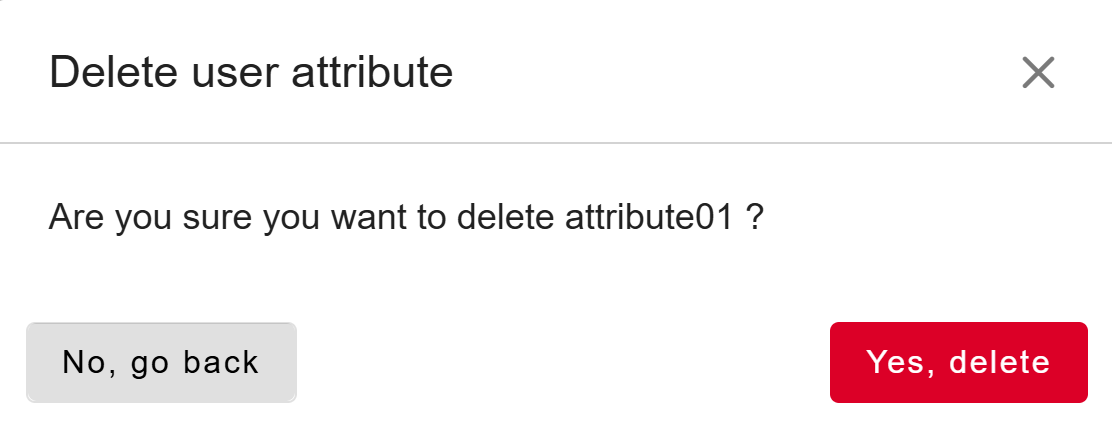
The user attribute is successfully deleted.