
SCIM provisioning
SCIM (System for Cross-Domain Identity Management) is a standard protocol that helps automate user management between systems. We added SCIM API endpoints to allow user provisioning and synchronization from external directories.
This guide explains how to connect Microsoft Entra ID (formerly Azure AD) to TrustBuilder using SCIM. It shows how to automatically create, update, and delete user accounts.
Support for other identity providers may be added later.
Refer to Microsoft documentation - Integrate SCIM endpoints with the Microsoft Entra provisioning service to get more information.
Provisioning from Entra ID via SCIM

Microsoft Entra ID will act as the source directory. This means that user data is managed in Entra ID and automatically synchronized with TrustBuilder through SCIM.
As a result, user attributes should not be modified in TrustBuilder. Any changes made there will be overwritten during the next synchronization. Always make updates (such as name, email or status) directly in Entra ID.
✅ Prerequisites
The Trustbuilder SCIM endpoint: https://api.trustbuilder.io/api/v1/identity/scim
A valid Bearer token (see API tokens)
Microsoft Entra ID Requirements
An account with the Application Administrator role.
A Microsoft Entra ID Premium P1 license.
Step 1: Create an Enterprise app in Microsoft
Sign in to the Microsoft Entra admin center.
Browse to Entra ID > Enterprise apps.
A list of all configured apps is shown.
Select + New application > + Create your own application.
Enter a name for your application (e.g: SCIM app)
Choose the option "Integrate any other application you don't find in the gallery (Non-gallery)".
Select Create to create an app.
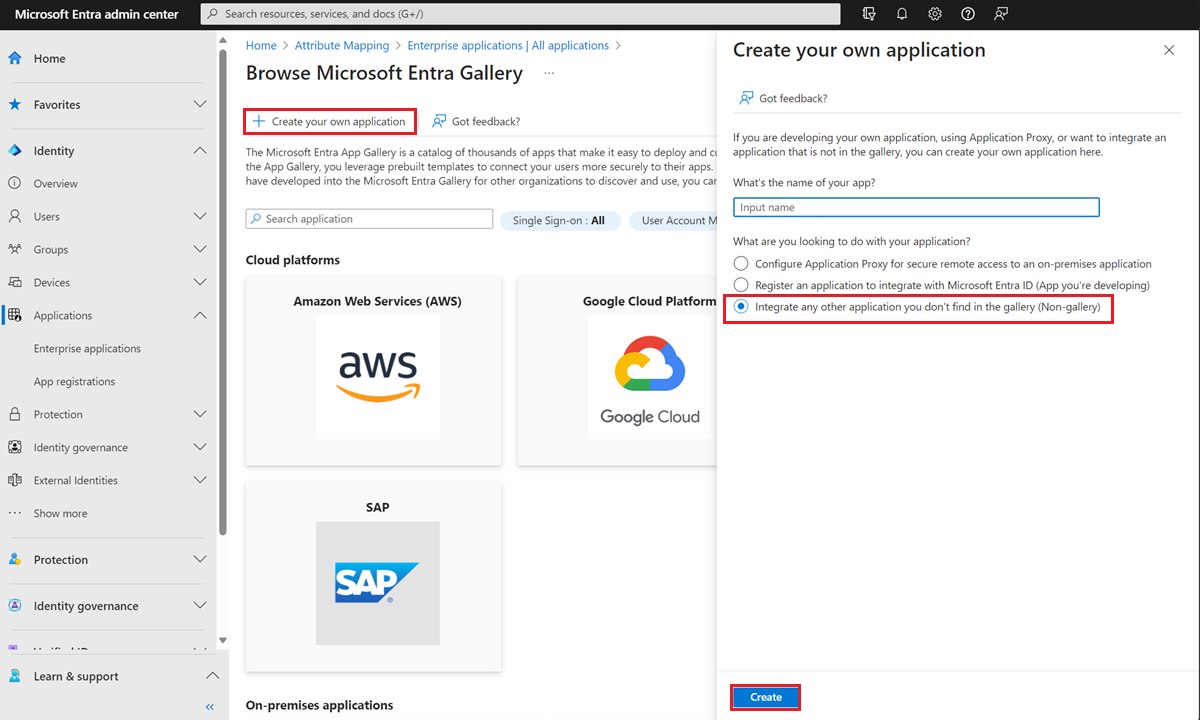
The new app is added to the list of enterprise applications.
Step 2: Configure the Enterprise app in Microsoft
Once the app is created:
Navigate to Entra ID > Enterprise Apps.
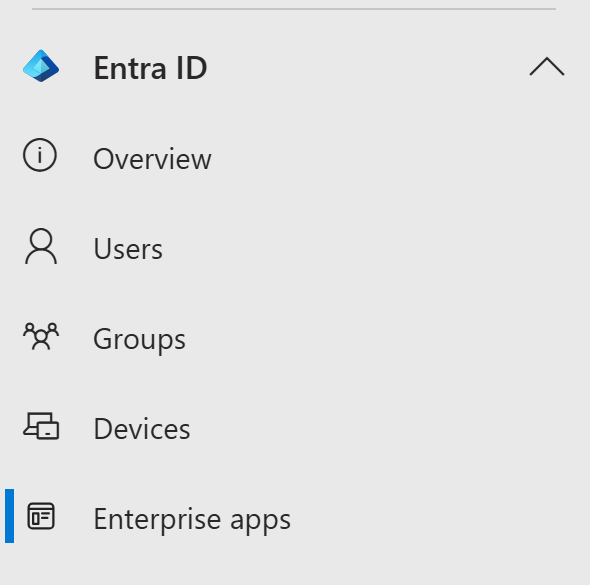
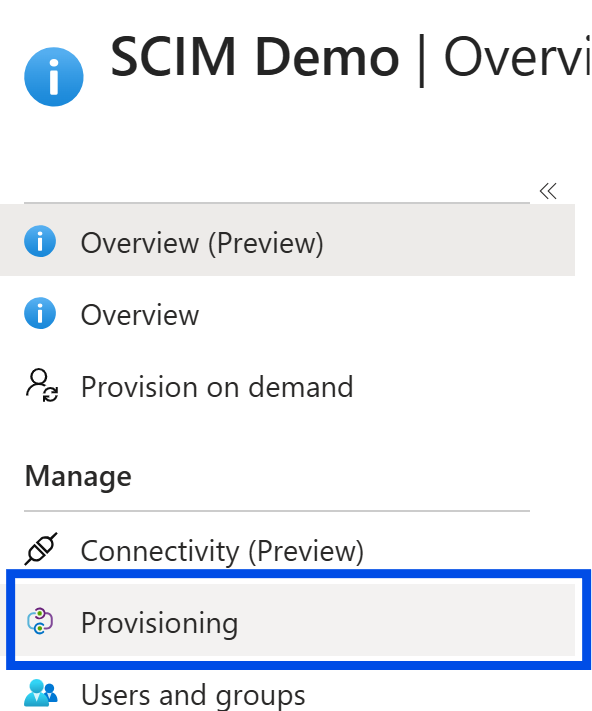
Select your SCIM app.
Go to Provisioning section in the left panel.
Click on + New configuration.
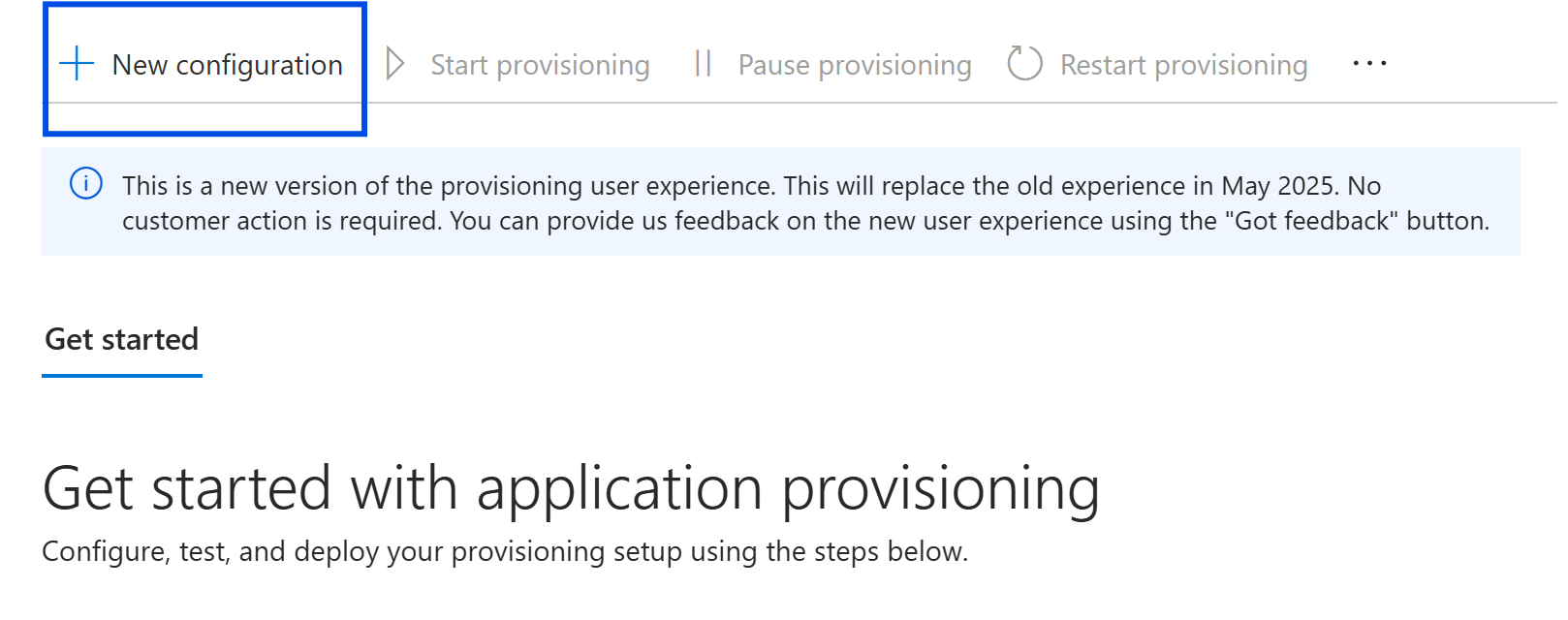
In Admin Credentials:
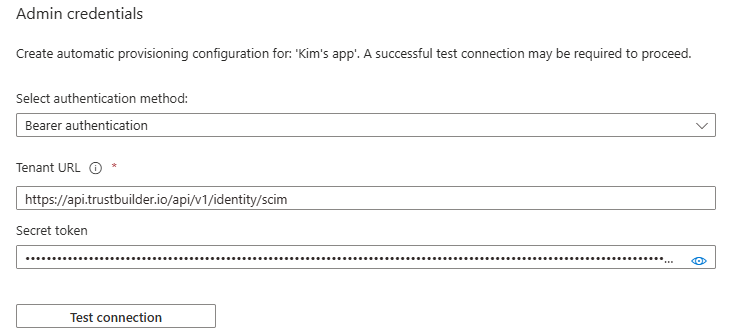
Enter the Tenant URL to TrustBuilder SCIM endpoint and the Secret token (without “Bearer” prefix). Click on Test connection. If the attempt fails, error information is displayed.
Click on Create if the attempt to connect to the application succeeded.
Go to Attribute mapping in the left panel.
Enable provisioning for users.
 Groups cannot be provisioned yet.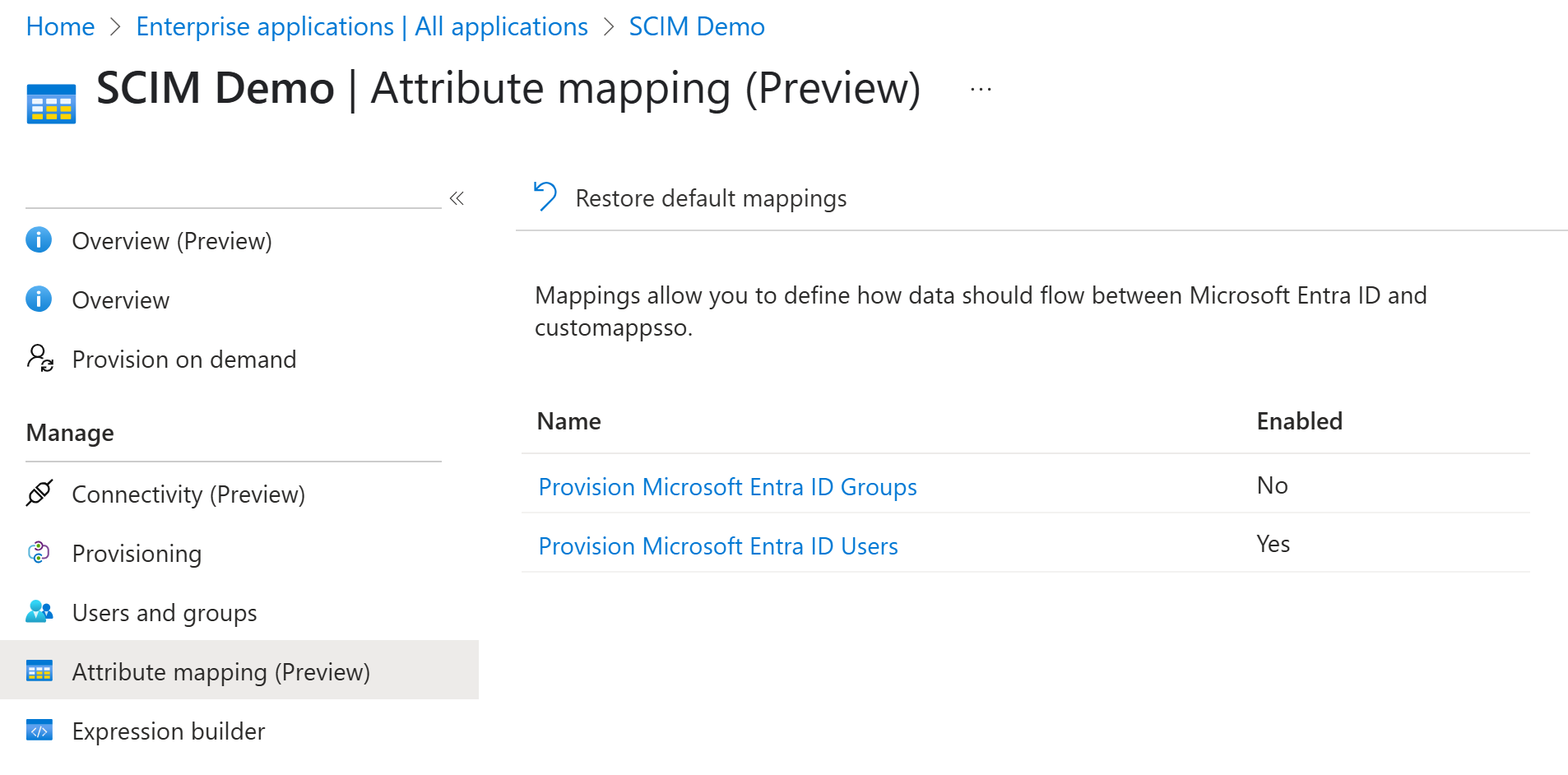
Click on Provision Microsoft Entra ID Users to configure the attributes that are synchronized from Microsoft Entra ID to your app.
Keep the attributes supported by TrustBuilder which are the following:
Customappsso Attribute | Microsoft Entra ID Attribute | Comment |
|---|---|---|
|
| Mandatory - Username in TrustBuilder |
|
|
|
|
| Mandatory if you want to send an enrollment email to users. E-mail in TrustBuilder |
|
| Optional - Used for email language. Set via Microsoft Graph API only. Default is 'en'. |
|
| Optional - First Name in TrustBuilder |
|
| Optional - Last Name in TrustBuilder |
|
| Optional - Phone in TrustBuilder |
Do not delete attributes that are in the table above.
Click on Save.
ENROLLMENT EMAIL
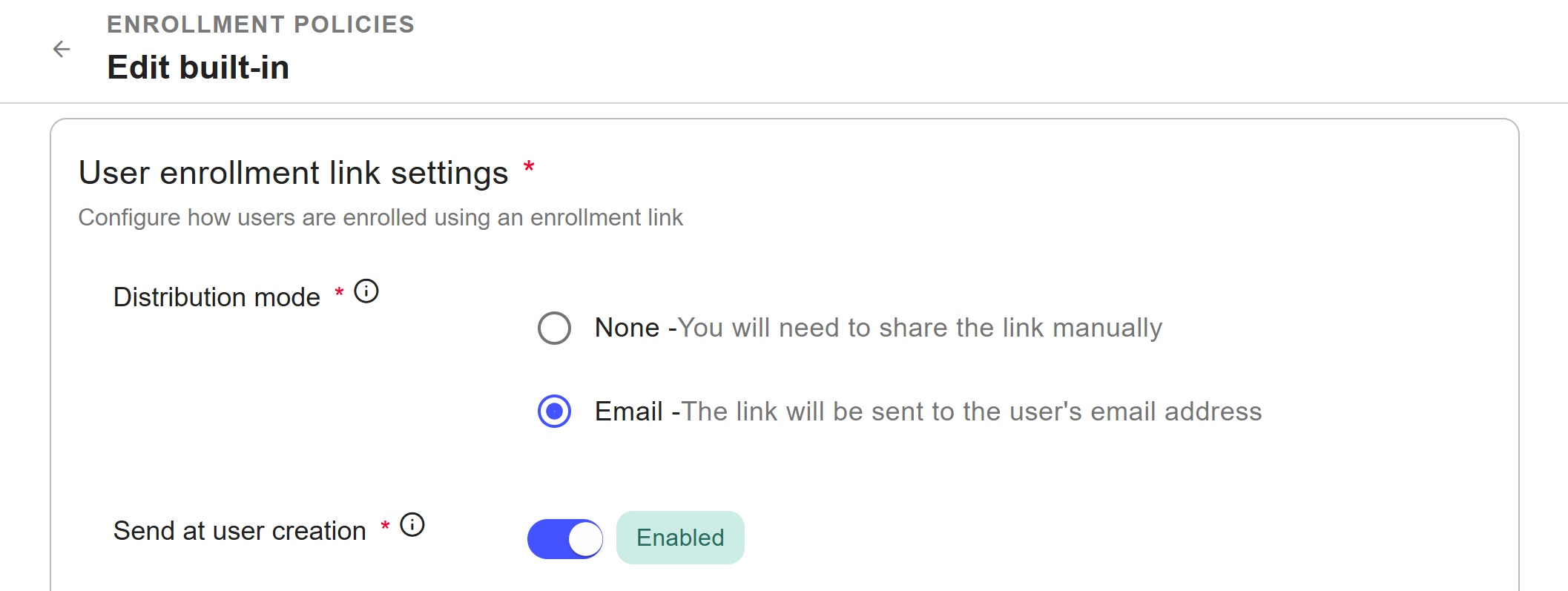
To ensure users receive the enrollment email, configure the enrollment policy with Email as the delivery mode of the enrollment link and make sure Send at creation is enabled.
More information
Step 4: Provision users

Group synchronization is not yet supported. Coming in the next release.
In Microsoft Entra admin center:
In the left menu, select Enterprise applications.
Click on your SCIM application.
Go to Provisioning in the left panel then Provisioning.
In Settings, choose the scope: Sync only assigned users and groups.
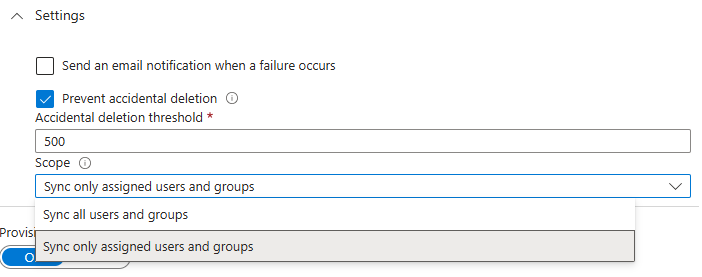
Click on Save.
Click Users and groups > + Add user/group.
Click on None Selected.
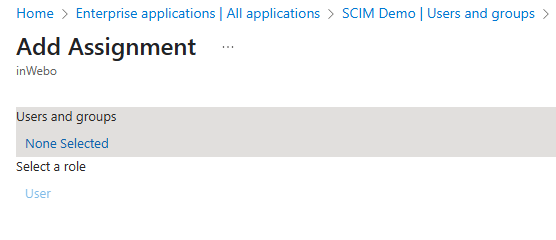
Select the users to provision and click Select.
Click on Assign.
Provisioning occurs every 40 minutes. Once completed, you can verify that users have been created in the TrustBuilder MFA Admin console.
In Microsoft Entra admin center, in the left menu, select Enterprise applications.
Click on your SCIM application.
Go to Provisioning in the left panel then Provisioning.
In Settings, choose the scope: Sync all users and groups.
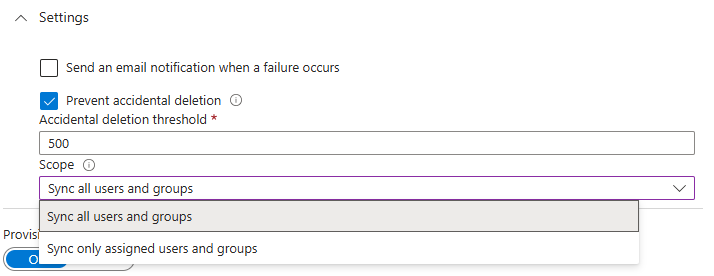
Click on Save.
Go to Attribute Mapping (Preview).
Click on Provision Microsoft Entra ID Users.
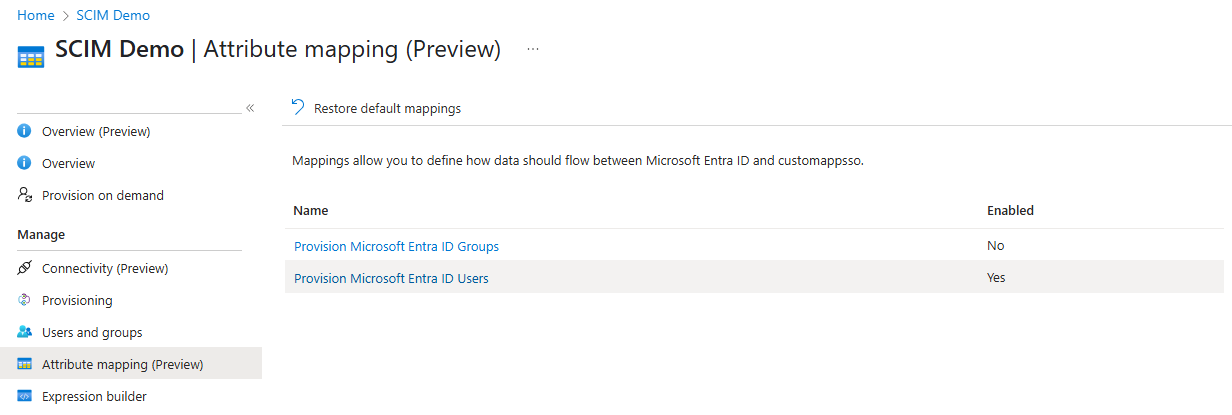
At Source Object Scope, click on All records.
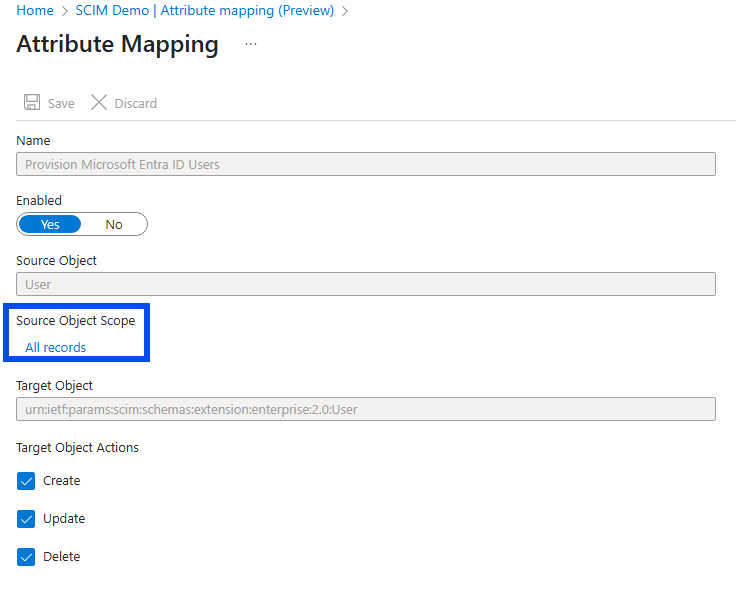
Click on + Add new filter group.
Define a clause by selecting a source Attribute Name, an Operator and an Attribute Value to match against. See Microsoft documentation
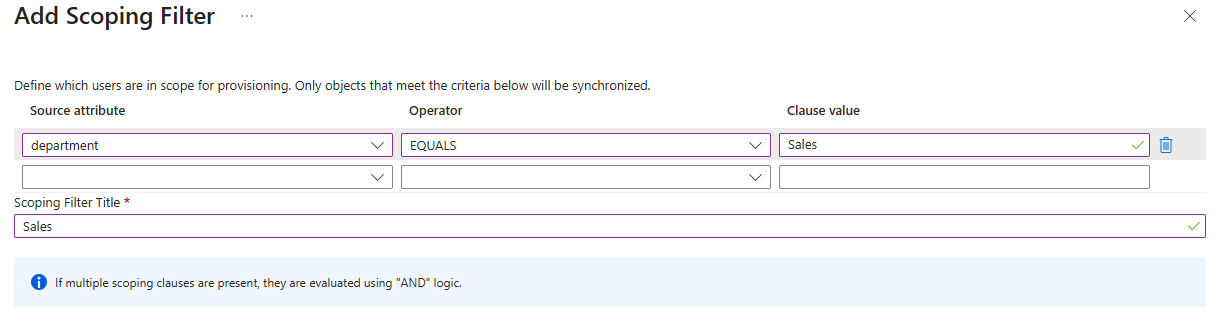
In Scoping Filter Title, add a name for your scoping filter.
Click OK then OK again on the Scoping Filters screen.
Select Save on the Attribute Mapping screen.
Once the filter is applied, only users matching its condition are provisioned into TrustBuilder MFA.
Users out of scope
If a user no longer matches the scoping filter (after a department change for example) they still exist in TrustBuilder but are automatically blocked at the next synchronization.
Provisioning occurs every 40 minutes. Once completed, you can verify that users have been created in the TrustBuilder MFA Admin console.
About deletion
User deletion
Microsoft Entra ID handles user deletion in two steps and TrustBuilder reacts differently to each:
Soft-deleted user in Entra:
The user is moved to the "Deleted users" section (trash).
Their UPN is changed (Object ID + previous UPN, if the UPN is mapped with the login).
In TrustBuilder:
The user is not deleted.
The user is blocked (administratively disabled).
The login is updated if UPN is mapped → may cause issues.
Hard-deleted user in Entra
The user is permanently deleted from Entra.
In TrustBuilder, the user is deleted.