
In TrustBuilder, templates define the content of specific user-facing pages such as consent pages, registration pages or password reset pages.
Create a template
To create your own template:
-
Go to Settings > User Pages Configuration.
-
Click + Add New Template.
-
Enter a name for the new template.
-
Optional - Select a Base Template.
This will prefill the fields below with the content and parameters of the selected base template. -
Select a type that best matches your use case:
-
BRANDING → General branding pages (login, consent, registration, etc.)
-
CHANGE_PASSWORD → Password change pages
-
MOBILE_REGISTRATION → Mobile registration pages
-
OIDC_POST_PROFILE → OIDC post-login pages
-
RESET_PASSWORD → Password reset pages
-
SAML2_POST_PROFILE → SAML2 post-login pages
-
VERIFY_RECIPIENT → Verification pages
-
WORKFLOW → Workflow related pages
-
-
Select Mail channel.
SMS is not used.
-
Select a default locale. This will be the default mode displayed based on the content in the tabs below (see next step).
⚠️ Limitation : When multiple modes are defined, the default locale may not be applied.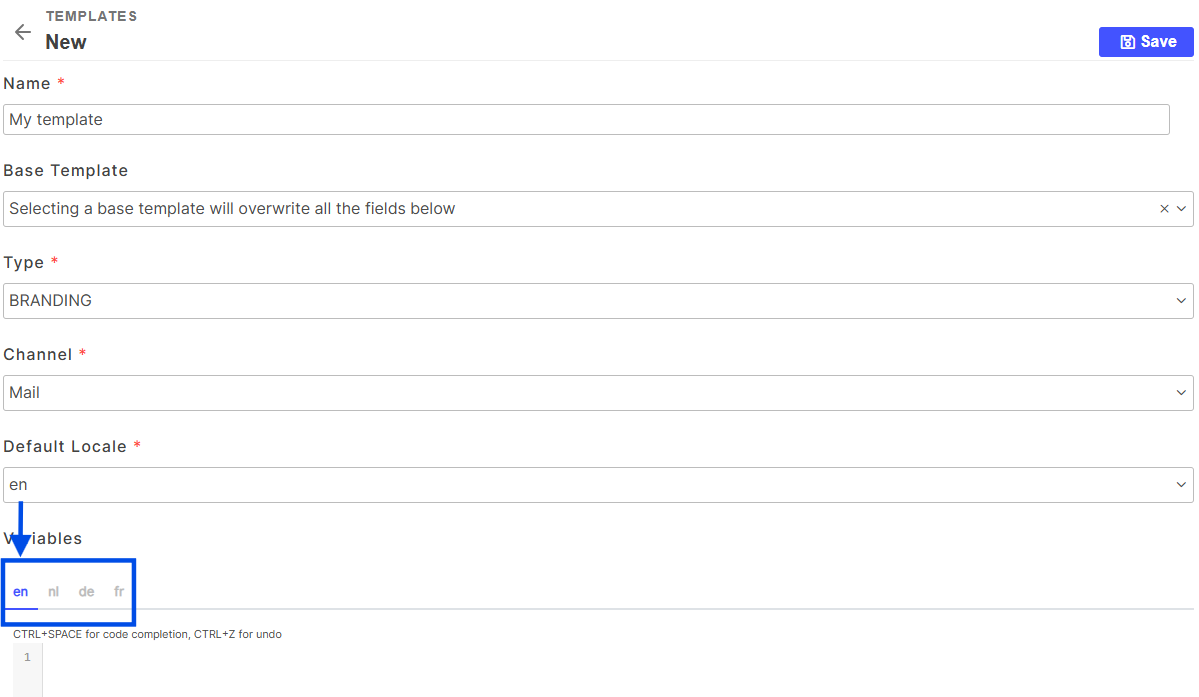
-
The variables section will display the current variables in your template.
-
Enter template content:
-
Write your template in HTML format.
-
Use the tabs (
en,nl,de,fr) to create different language versions of the template.
These tabs can also serve as different modes, allowing you to display completely different content depending on the context. -
To display a specific mode, append the
tb_langparameter to the URL (?tb_lang=nl). TrustBuilder will render the corresponding tab's content.
-
-
Click Save.
Once saved, it can be applied to the relevant user-facing pages via Settings > Default Templates.
Default Templates Overview
Below is a list of default templates provided by TrustBuilder:
Branding Templates
-
DEFAULT_CONSENT_PAGE: Consent request page.
-
DEFAULT_REGISTER_PAGE: User registration page.
-
DEFAULT_RESET_PASSWORD_PAGE: Reset password page.
-
DEFAULT_ACTIVE_DIRECTORY_LOGIN_PAGE: Active Directory login page.
-
DEFAULT_MOBILE_LOGIN_PAGE: Mobile login page.
-
DEFAULT_SELECT_IDP_PAGE: Identity provider (IDP) selection page.
-
(Starting from version 2024.9.0), by default, the "Sign up" button is hidden →
sign-up-hidden="true".
To display the button: setsign-up-hidden="false"in the template.
-
-
DEFAULT_PERSONA_SELECTION_PAGE: Persona selection page.
-
DEFAULT_CHANGE_PASSWORD_PAGE: Password change page.
-
DEFAULT_VERIFIED_PAGE: Verified status page.
-
DEFAULT_LOGOUT_PAGE: Logout page.
-
DEFAULT_ERROR_PAGE: Error page.
-
DEFAULT_APPLICATION_CATALOG_PAGE: Application catalog page.
-
DEFAULT_SELFSERVICE_PAGE: Self-service portal page.
Email Templates
-
DEFAULT_RESET_PASSWORD_EMAIL: Reset password email.
-
DEFAULT_CHANGE_PASSWORD_EMAIL: Change password email.
-
DEFAULT_VERIFY_EMAIL_ADDRESS_EMAIL: Email address verification email.
-
DEFAULT_MOBILE_REGISTRATION_EMAIL: Mobile registration email.
-
DEFAULT_PROVISION_USER_EMAIL: Provision user email.
Authentication and Workflow - Specific Templates
-
DEFAULT_OIDC_POST_PAGE: OIDC post-login page.
-
DEFAULT_SAML2_POST_PAGE: SAML2 post-login page.
-
DEFAULT_INTERACTIVE_NEW_USER_PAGE: New user interactive page.
-
DEFAULT_INTERACTIVE_LINK_EXIST_PAGE: Link existing account interactive page.
-
DEFAULT_CHANGE_PASSWORD_USER_PAGE: User password change page.
-
DEFAULT_USER_PASSWORD_LOGIN_PAGE: Login page for username/password authentication.
(Starting from version 2024.8.0), by default, the "Register" button is hidden →register-hidden="true".
To display the button: setregister-hidden="false"in the template. -
DEFAULT_VERIFY_SMS_SMS: SMS verification template.