
Use Trustbuilder APIs with Postman
Trustbuilder access tokens are used to authenticate requests to Trustbuilder APIs. When calling a Trustbuilder API endpoint, you need to supply a valid access token in the HTTP Authorization header. You should prefix the value with the bearer which specifies the authentication scheme used.
1. Get client credentials in Trustbuilder
From the admin portal:
Go to Applications > Applications.
Click on + Set up app integration.
Select OAuth .
Give your application a name and select Regular Web App.
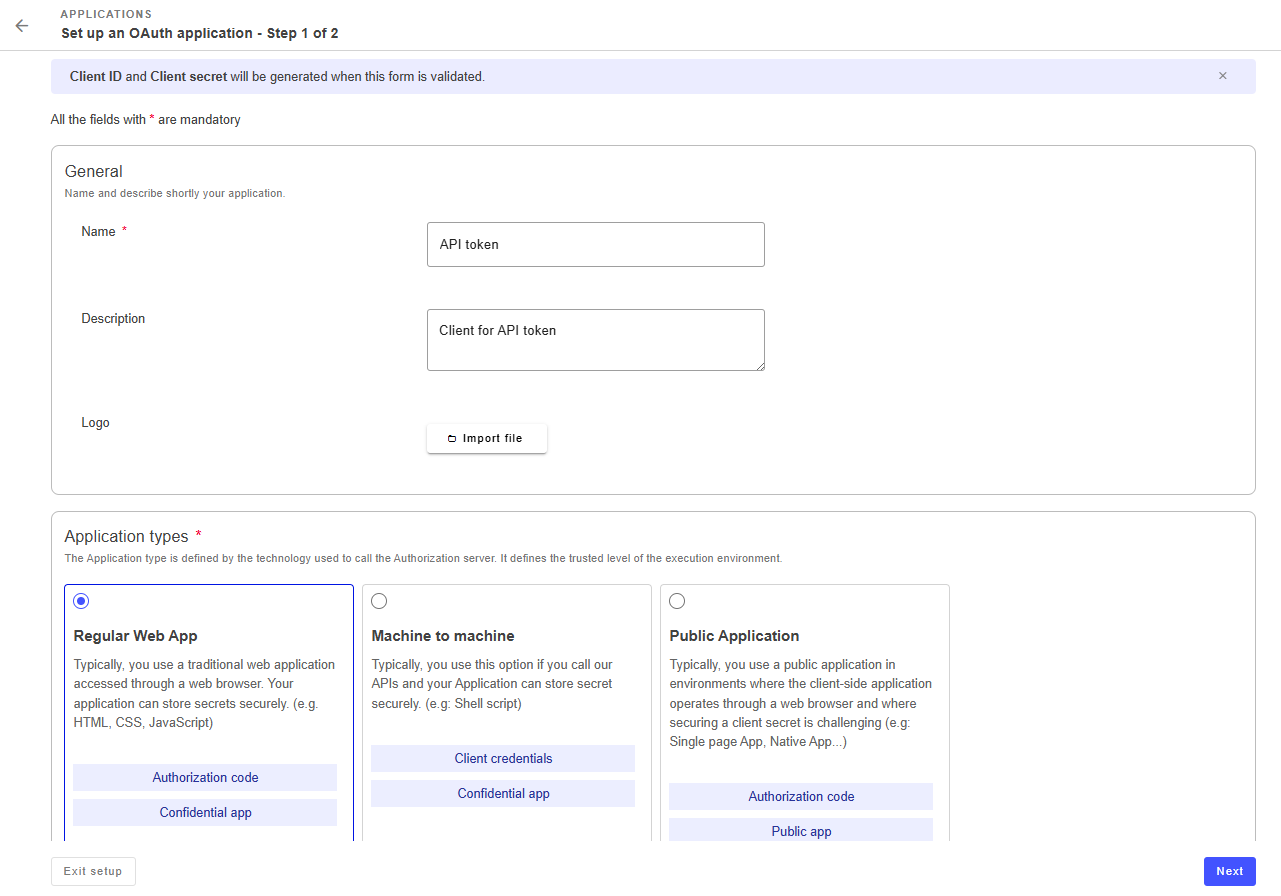
Click Next.
Configure the following settings:
Subject management: leave the default value
API & Scopes:
Select Internal API and click on View.

Check the scopes.
Authentication methods: select Client Secret POST.
Redirect URIs: enter Postman callback URI (generally
https://oauth.pstmn.io/v1/callbackorhttps://oauth.pstmn.io/v1/browser-callback).Policies: default value
Access Token: RS256
Click on Submit.
Copy the client secret from the pop-up.
⚠️ It will not be displayed again for security reasons.Click on Done.
The main configuration is complete.In Endpoints tab, you can copy the various endpoints.
2. Get an access token in Postman
Log in to Postman.
Create a new collection or a new request.
Go to Auth tab.
Configure Authorization parameters:
Auth type: OAuth 2.0
Add auth data to: Request Headers
Header Prefix: Bearer
Token name: define a token name
Grant type: Authorization Code
Callback URL: generally
https://oauth.pstmn.io/v1/callbackorhttps://oauth.pstmn.io/v1/browser-callback
⚠️ it should match one of the Redirect URIs set in TrustBuilder.Auth URL: the Authorization endpoint of your OAuth application in Trustbuilder.
You can get it in your OAuth application in Trustbuilder > Endpoints tab.
It looks likehttps://api.trustbuilder.io/api/v1/sso/oauth2/{client_id}/authorize.Access Token URL: the Token endpoint of your OAuth application in Trustbuilder.
You can get it in your OAuth application in Trustbuilder > Endpoints tab.
It looks likehttps://api.trustbuilder.io/api/v1/sso/oauth2/{client_id}/token.Client ID: paste the Client ID generated in TrustBuilder
Client Secret: paste the Client secret generated in TrustBuilder
Scope: insert the required scopes
It should be a checked scope of the OAuth application in TrustBuilder, space separatedusers:read users:writeClient Authentication: select Send client credentials in body.
Click on Get New Access Token.
Authenticate as an admin in the pop up windows. Once authenticated, you get a confirmation.
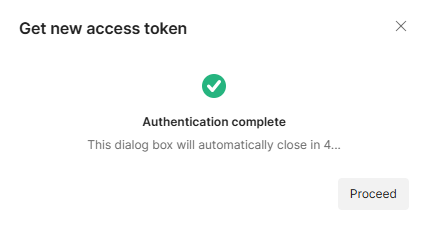
Click on Use Token to use this access token in your request.
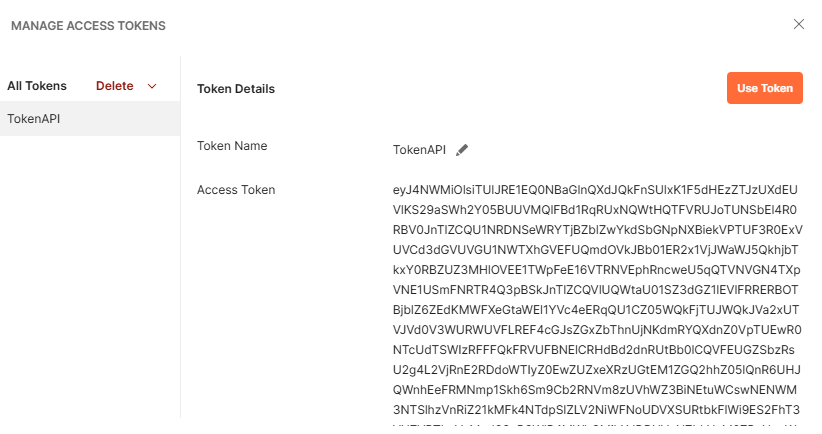
The access token has been generated and automatically added as the current token to use.
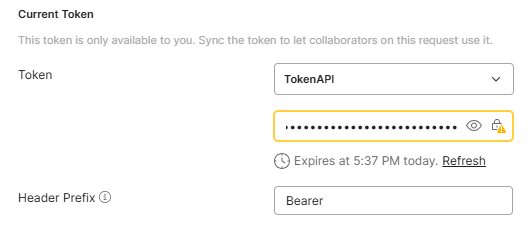
3. Make a request
For example, make a GET request to https://api.trustbuilder.io/api/v1/users to retrieve the list of users in the tenant:
Select the request method GET.
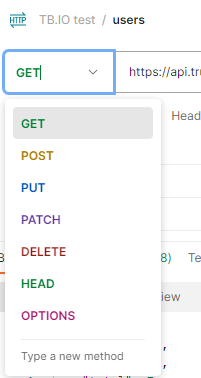
Enter the request URL
https://api.trustbuilder.io/api/v1/users
Click on Send.
The response should list the users and their attributes.