
Self-Service Portal
Manage authentication methods
Add an authentication method
In the Self Service Portal, go to Security.
Click on + Add an authentication method.
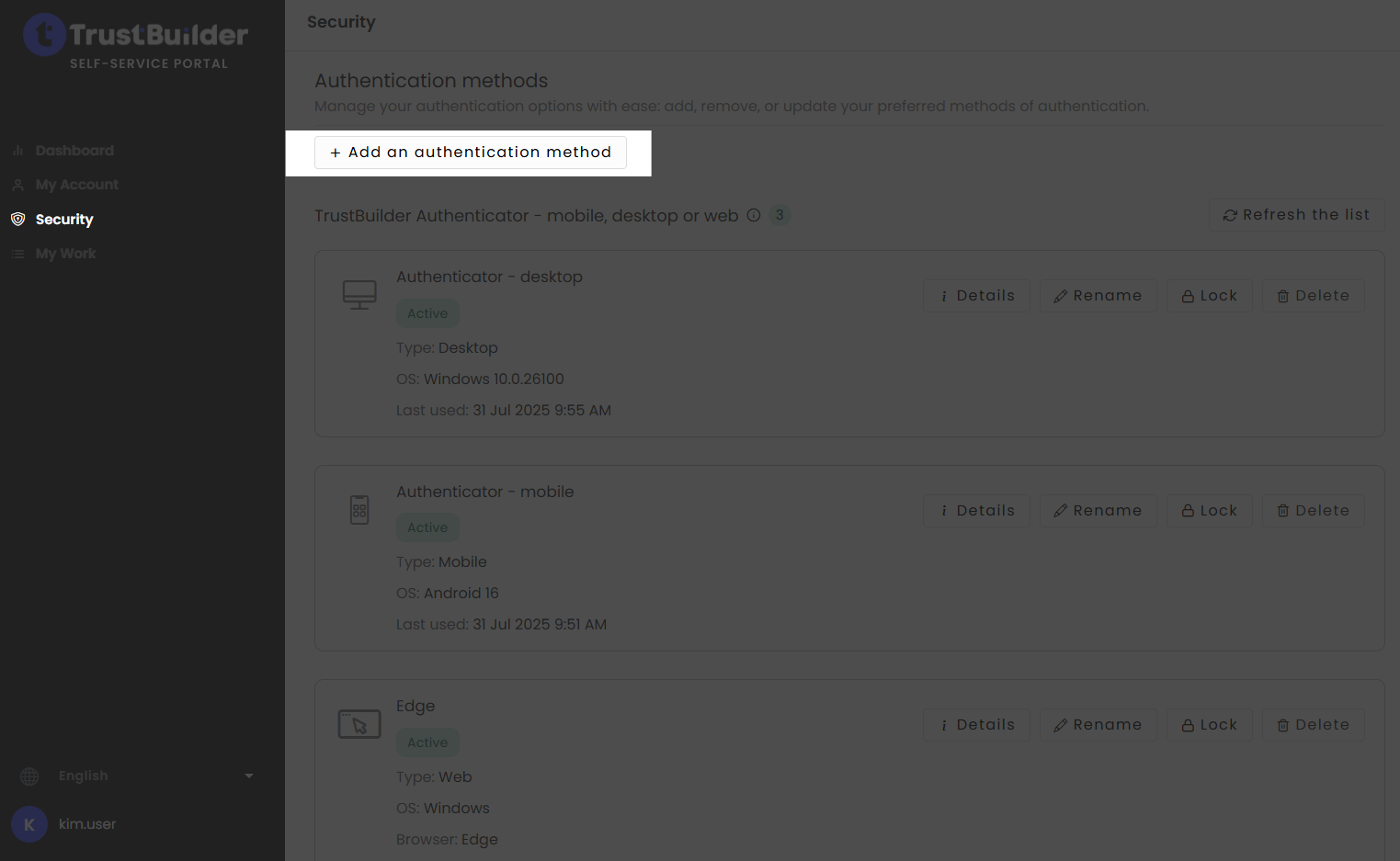
Select one of the available authentication methods:
TrustBuilder Authenticator Web: web browser based authentication using TrustBuilder browser token.
TrustBuilder Authenticator Mobile: authentication using TrustBuilder Authenticator mobile app (iOS or Android).
TrustBuilder Authenticator Desktop: authentication using TrustBuilder Authenticator desktop app (Windows, MacOS or Linux).
Security keys: FIDO2-based authentication using either a hardware key or a built-in passkey stored on a device.

Depending on the tenant configuration (allowed authentication methods, limit on active authentication methods), some methods may not be visible.
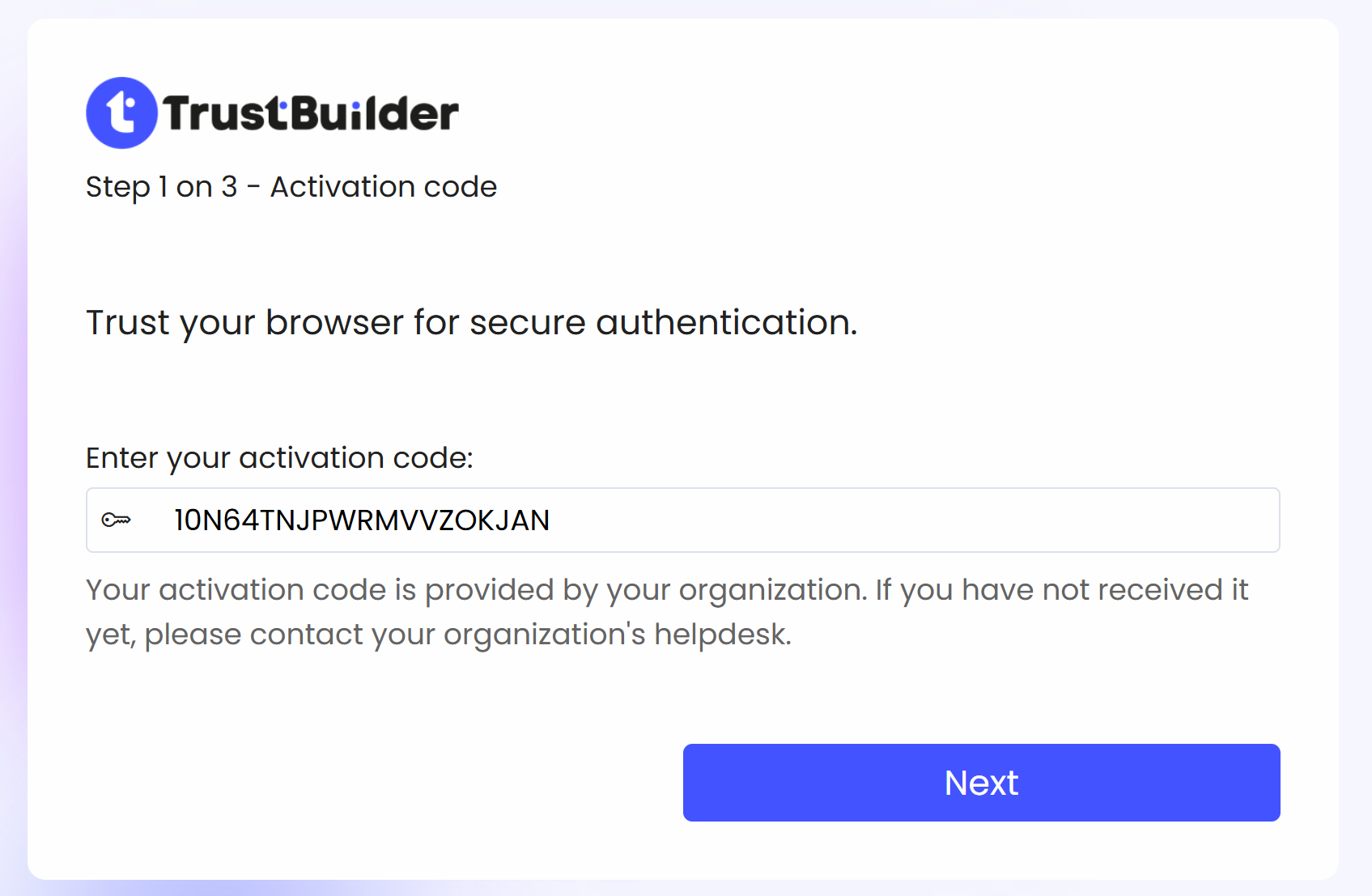
The activation code should be filled-in. Click Next.
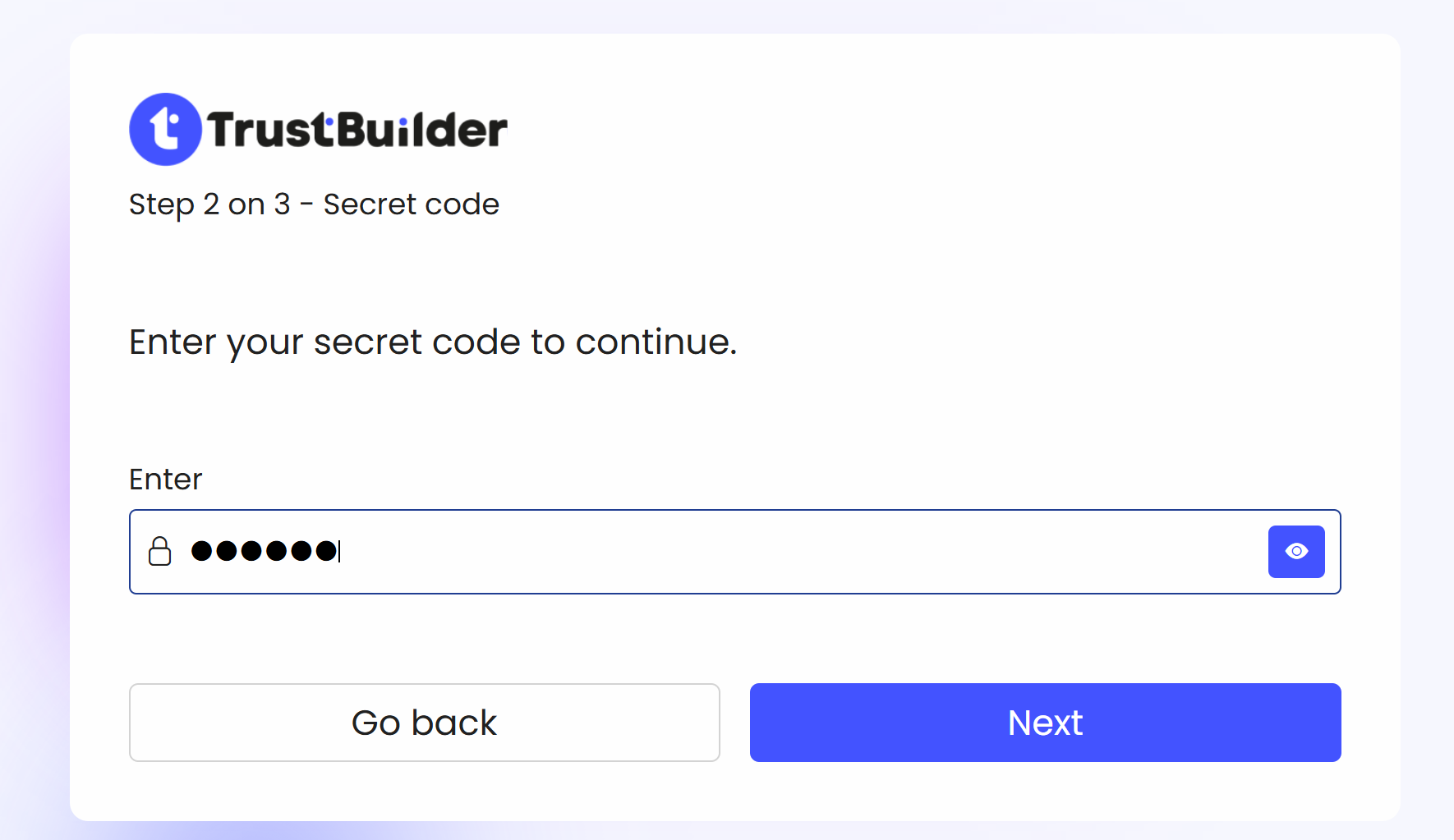
Enter your Secret code and click Next.
Enter a name for this authentication method (you can rename it later).
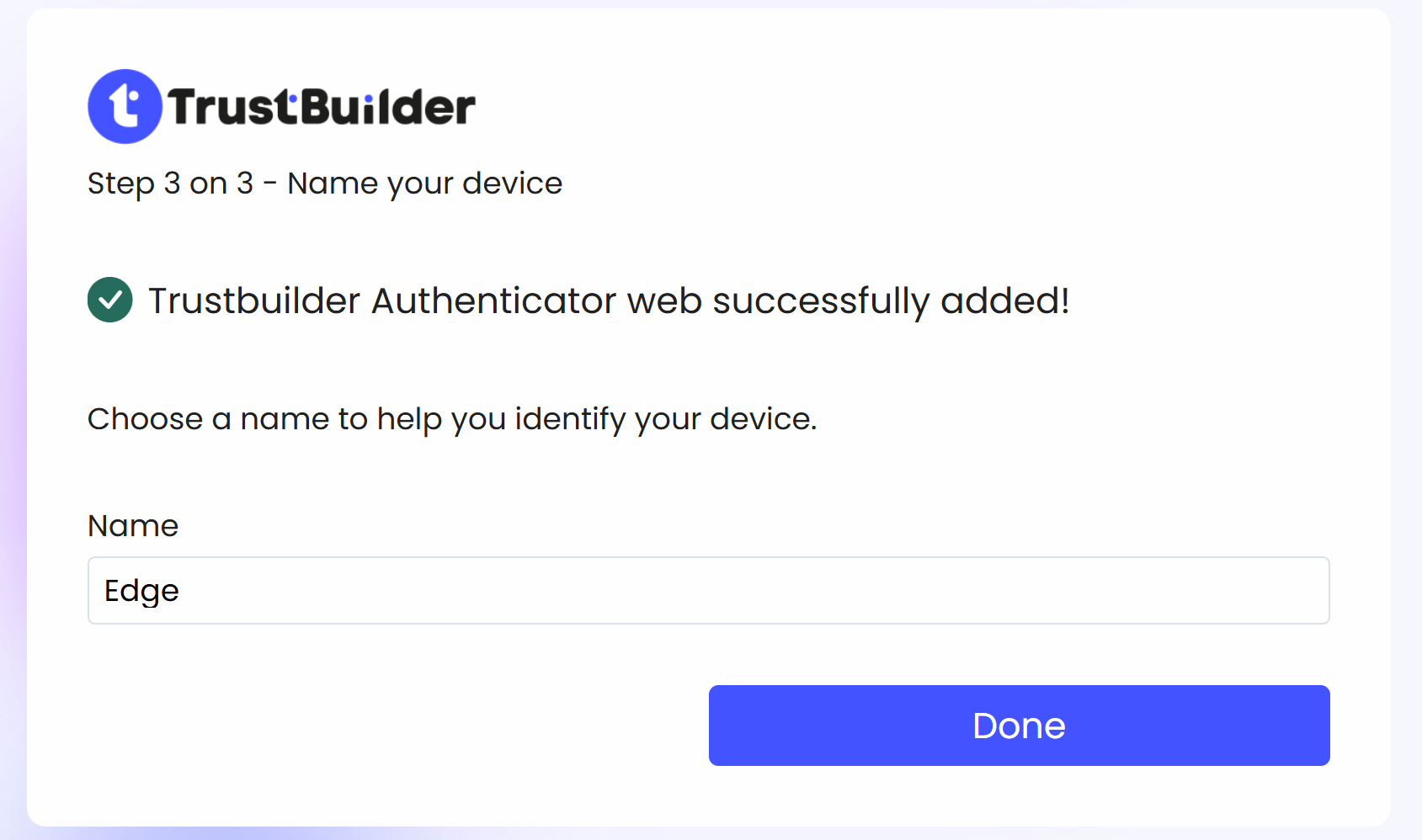
Click Done.
If the app is not already installed, scan the QR code or click on the link to download it.
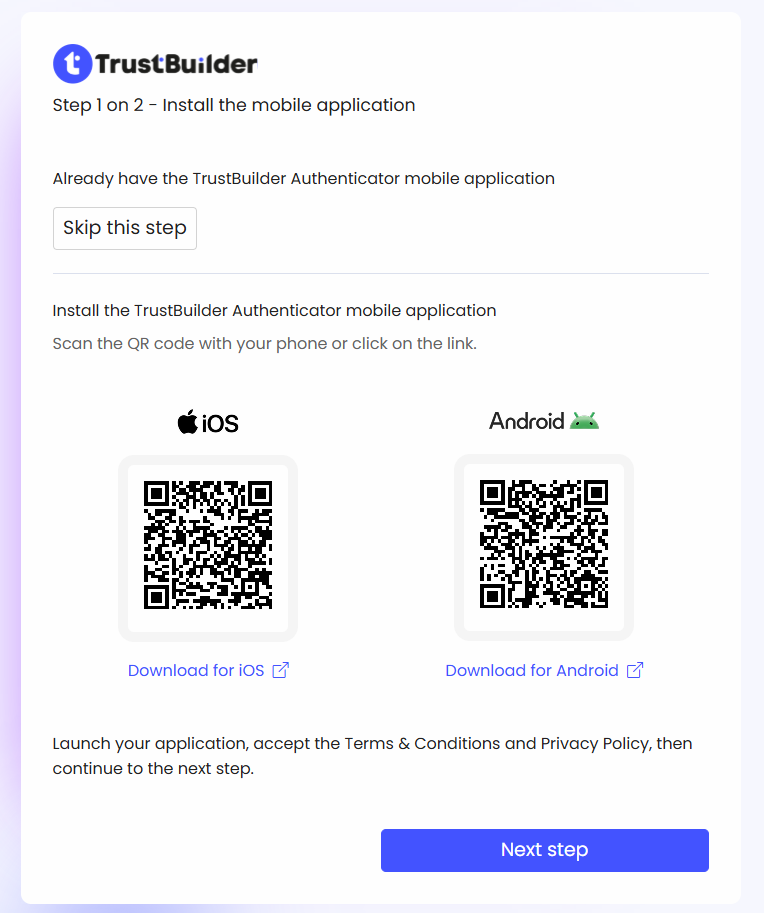
Click on Next step.
Launch TrustBuilder Authenticator application:
If this is your first time opening the app, click on Get started to accept the Terms & Conditions.
If you’ve already opened the app before, click on the user icon (top-right) > + Add an account.
Choose QR code or Activation code.
Scan the QR code or enter the activation code shown on the login page.
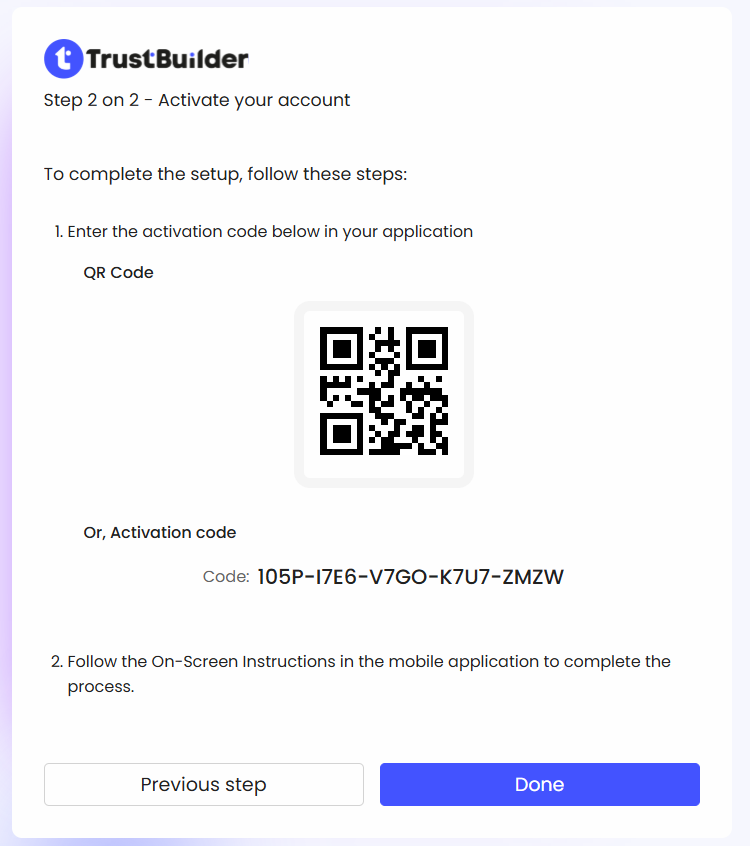
Enter your Secret code in the application.
On the login page, click on Done.
If the app is not installed, click the link to download it.
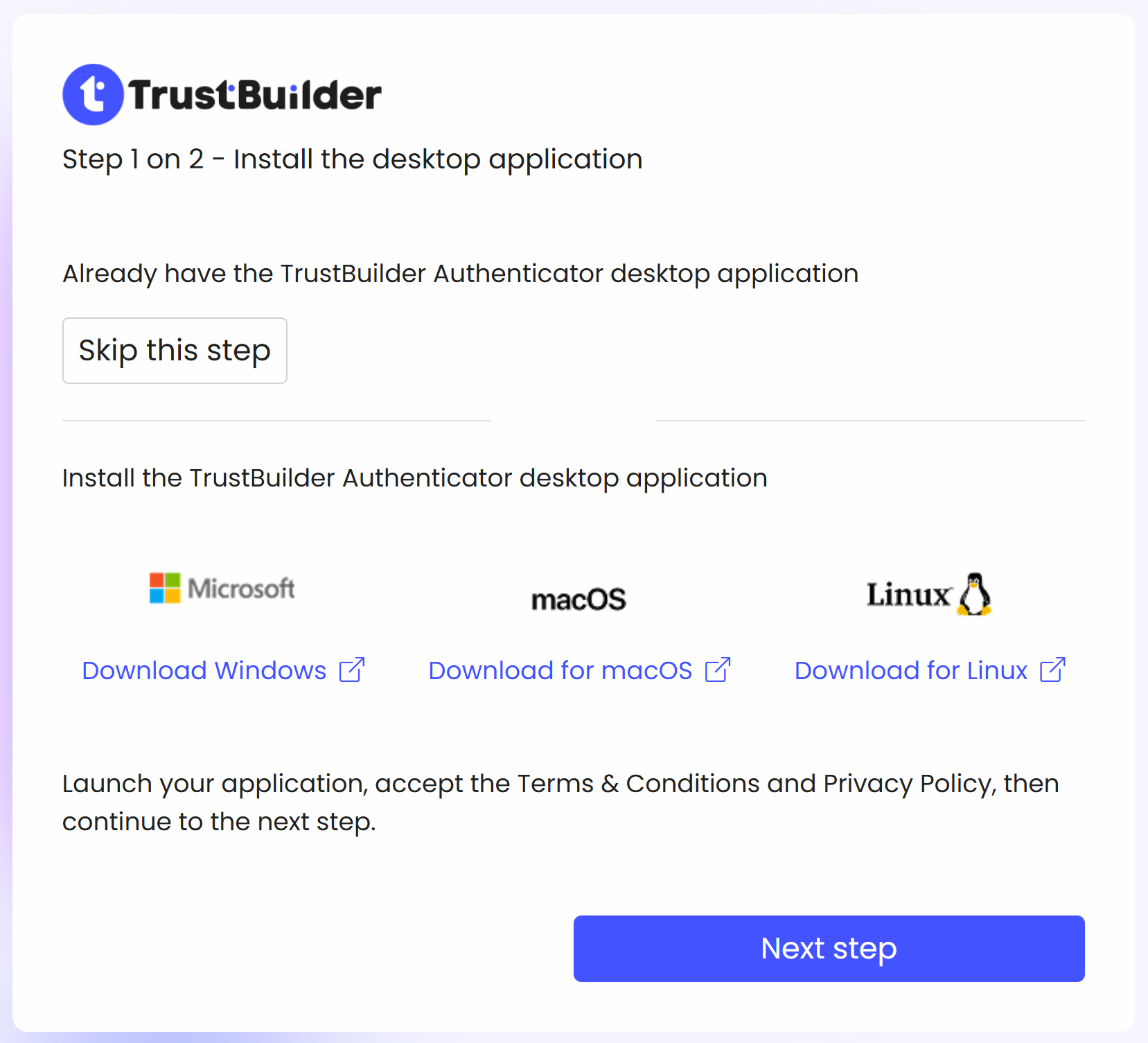
Click on Next step.
Launch TrustBuilder Authenticator application:
If this is your first time opening the app, click on Get started to accept the Terms & Conditions.
If you’ve already opened the app before, click on the user icon (top-right) > + Add an account.
Click on Activation code.
Copy the activation code displayed on the login page and paste it into the application.
Enter your Secret code in the application.
On the login page, click on Done.
✅ Compatible browsers: Chrome, Edge, Firefox (latest versions recommended).
 Temporary limitation on Safari: security key registration and authentication are not working.
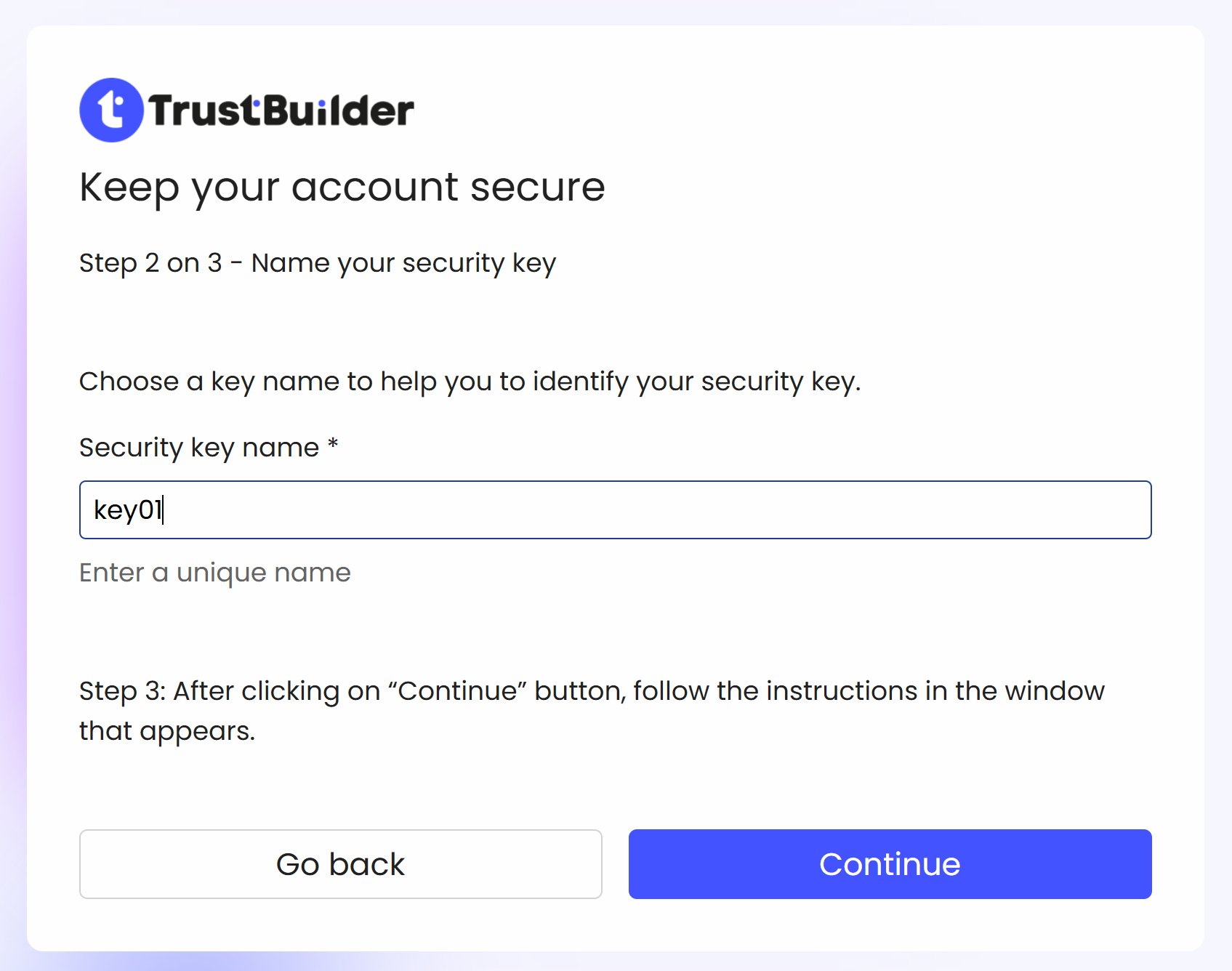
Click on Register a key.
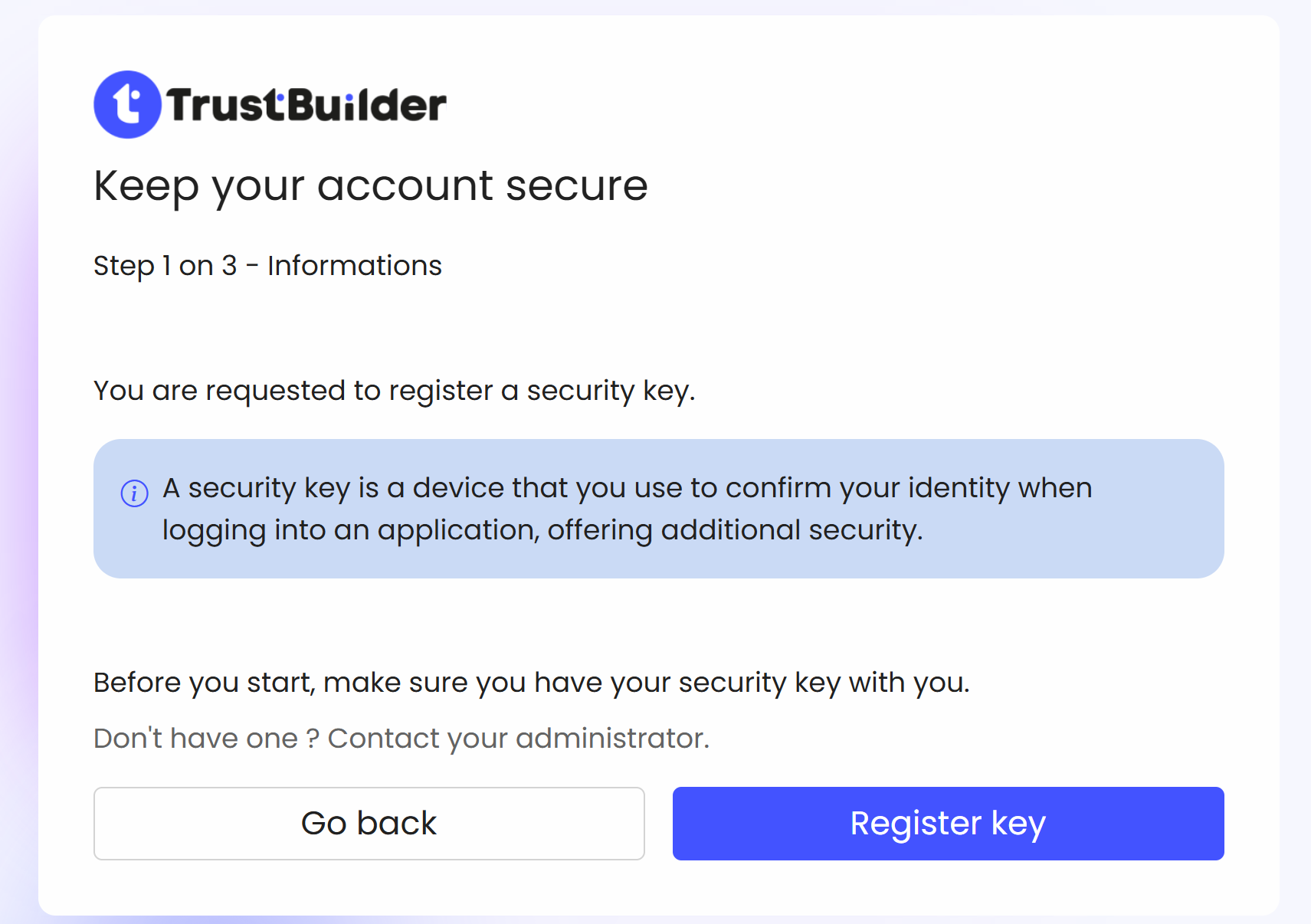
Enter a name for the new security key.
The name must be unique.
It cannot contain only spaces.
Maximum 32 characters.
Supports any characters, including emojis and non-Latin characters.
Follow the instructions in the pop-up window.
The steps vary depending on the type of security key used and the operating system.
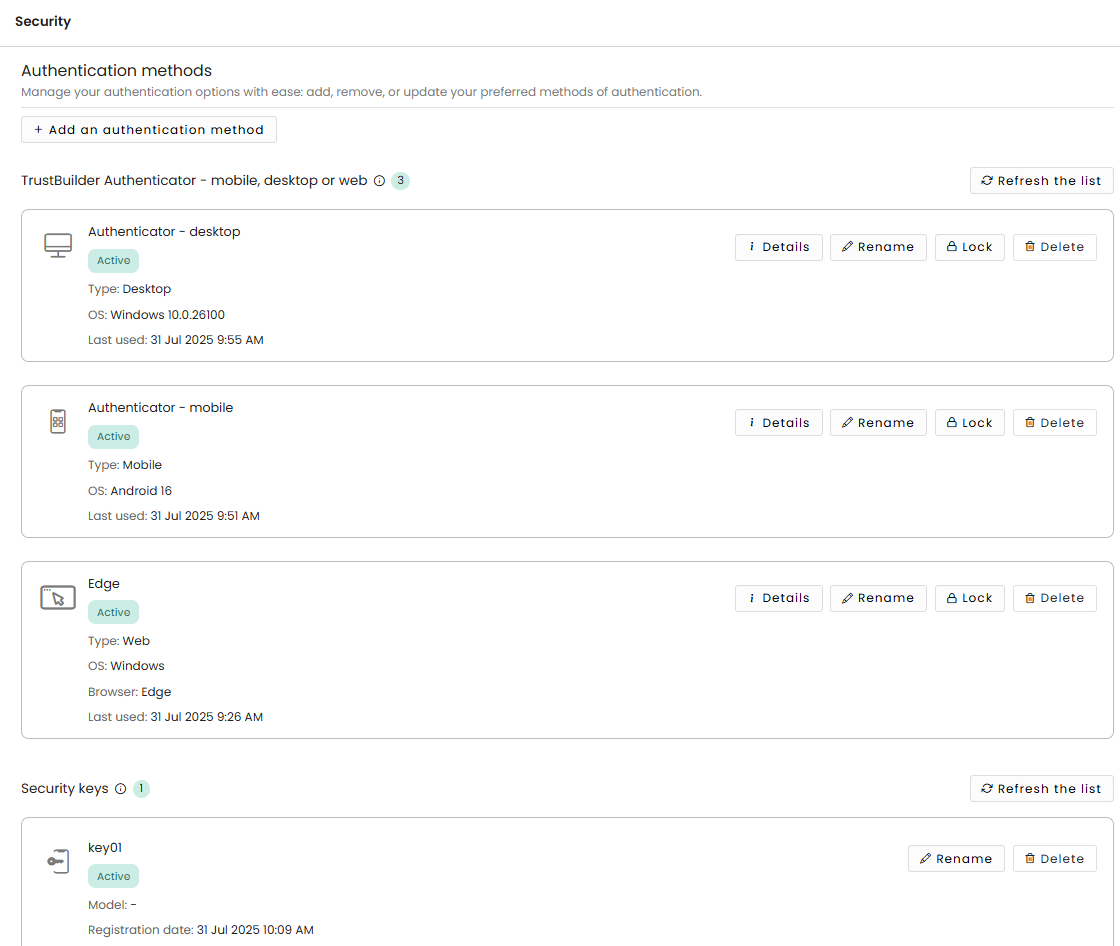
After being redirected to the Self-Service Portal, verify that the new authentication method appears in the list.
Rename an authentication method
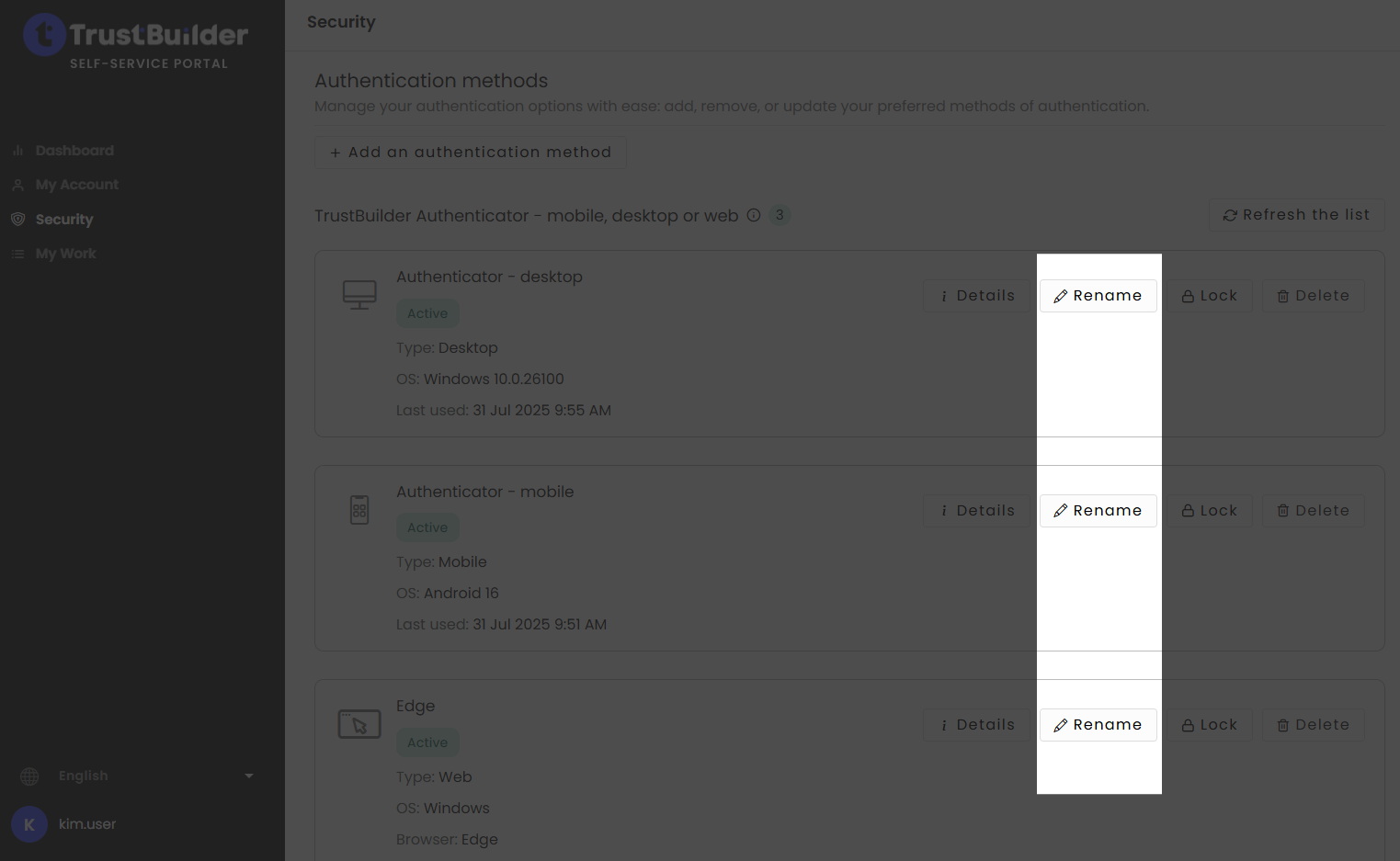
In the Self Service Portal, go to Security.
Click on Rename next to the authentication method.
Edit the name of the authentication method.
Click Save to update the name.
The authentication method is successfully renamed.
Lock an authentication method

Only TrustBuilder Authenticator methods can be locked by users in the Self-Service Portal.
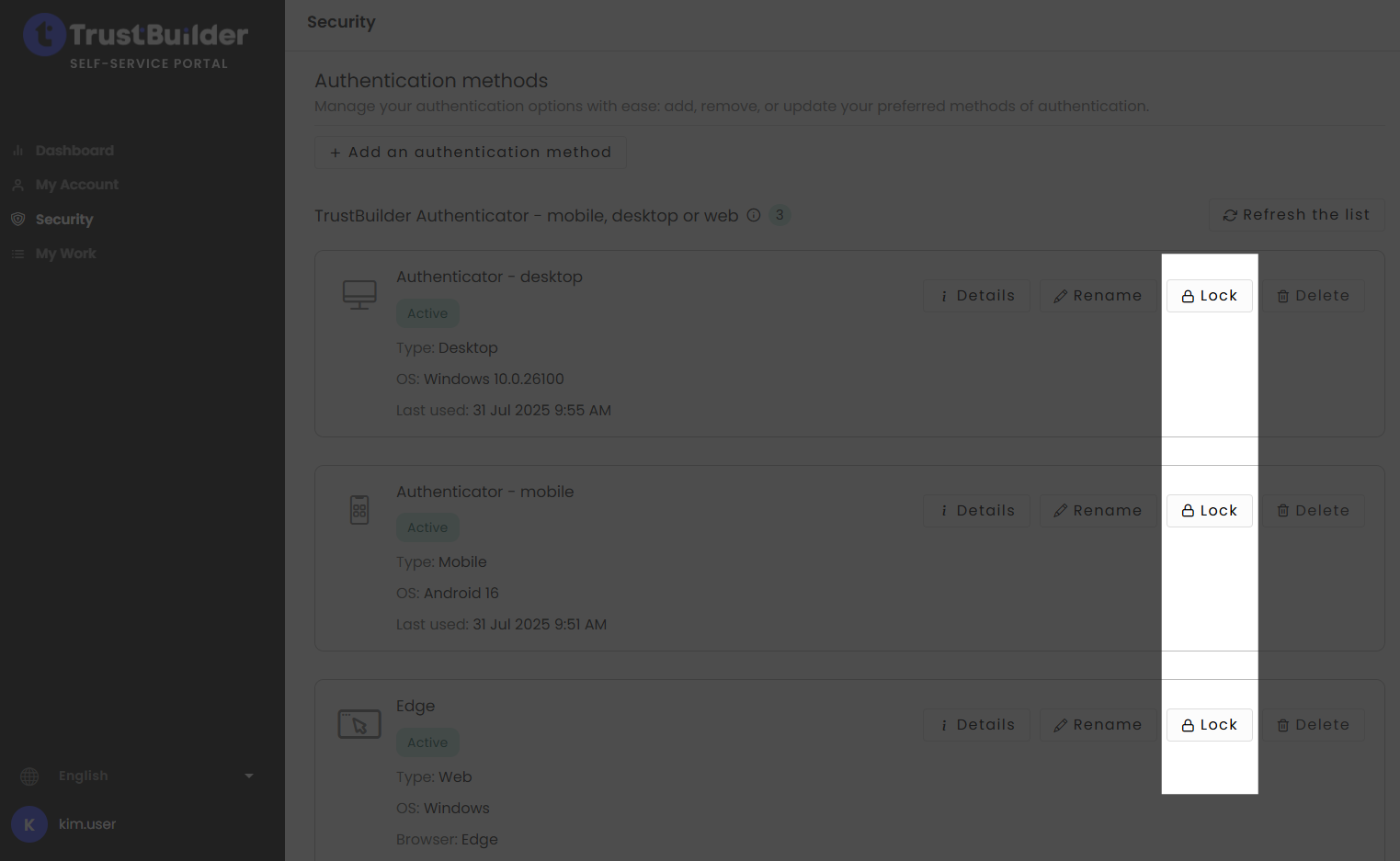
In the Self Service Portal, go to Security.
Click on Lock next to the authentication method.
Click on Yes, continue to confirme.
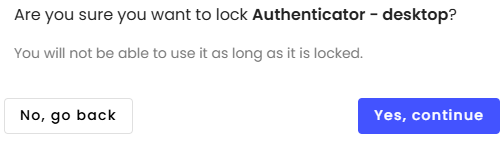
The method will show the status Locked by user. To unlock it, click Unlock.
If the status is Locked by administrator, you must contact them; you cannot unlock it yourself.
Delete an authentication method
In the Self Service Portal, go to Security.
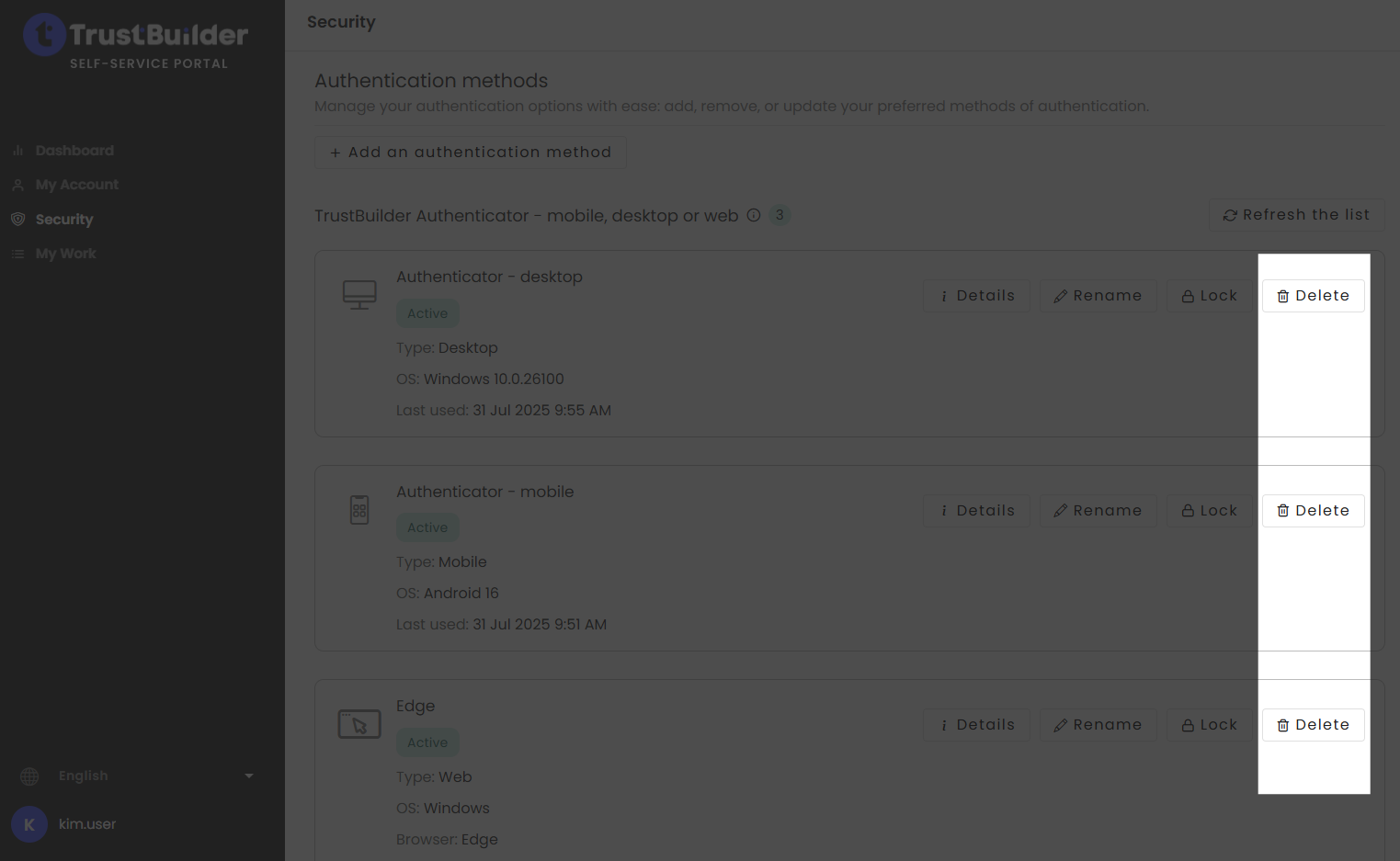
Click on Delete next to the authentication method.
Click on Yes, delete to confirm.
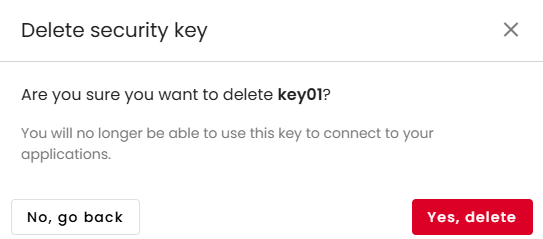
The authentication method is deleted and can no longer be used for login.